


Supporter Notifications allow you to create custom emails that can be sent automatically to your supporters after certain events take place in REACH.
Configuring supporter notifications during the onboarding and setup process is recommended for establishing clear and proactive communication with your supporters. By setting up these notifications, you ensure that supporters receive timely updates about their interactions with your organization, such as event registrations, sponsorship status, and donation activities.
We’ve provided our suggested text for each supporter notification that includes the liquid elements you’ll want to pull in for each one.
Supporter Notifications can be set up for the following events:
- Event Registration
- Offline Sponsorship Past Due
- Offline Sponsorship Supporter Created
- Offline Sponsorship Payment Due
- Recurring Donation Ended
- Sponsorship Cancelled
- Supporter Created
- Sponsorship Birthday
REACH Tip: Supporter Notifications can also be set up as drip email campaigns. For example, one Supporter Notification can be set to Immediate, a second Supporter Notification can be set up to be sent on Day 2, a third for Day 4, etc.
Note: Any Supporter Notifications that have been sent will be recorded in the supporter’s individual profile under their Activity tab, and by clicking on the Supporter Notification to view send history.
Setting Up Supporter Notifications
How to Video:
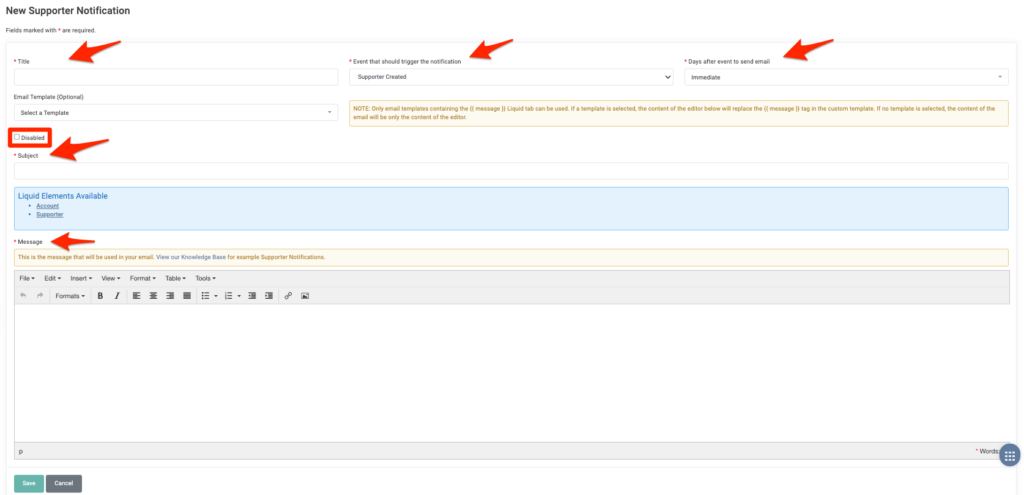
- Go to Settings > Supporter Notifications
- Click on + New Supporter Notification
- Note: A supporter notification can be set up individually for each event.
- Enter a Title
- Choose the Event that should trigger the notification
- Select the number of Days after event to send email
- Note: Immediate or any number from 1-30 days following
- For drip email campaigns, set up additional supporter notifications for each day
- Select an Email Template (Optional)
- Note: Select an email template if you would like to use a pre-designed template for your supporter notification. Only email templates containing the {{ message }} Liquid tab can be used. If no template is selected, the Default Supporter Email template will be used, and the content of the email will be only the content of the editor.
- Choose to Disable
- Disabled Supporter Notifications remain in your list but are not active. To renable, uncheck the Disabled box and click Save or click Actions > Enable.
- Add a Subject
- Note: This is the Subject of your email message
- Add your Message
- Note: Adding text in the editor is required. This is the message that will be used in your email. Example messages are shown in the next section.
- For a full list of Liquid Elements available to add to your message, see our Liquid Objects article.
- Click Save
Suggested Set Up and Message Text
Event Registration
*IMPORTANT NOTE: Event notifications are not unique to individual events. Any text in the Event Registration Notification will be used for all event registrations. For example, in a case where you would like to add specific information unique to a current event, keep in mind that the information will need to be removed/updated prior to a next event.
Event Registration – Send an email to a supporter when they are registered for an event.
- Title: Event Registration
- Event that should trigger the notification: Event Registration
- Days after event to send email: Immediate
- Email Template: no selection
- Subject: Thank you for your registration!
Example Message:
Hi {{ supporter.first_name }},
We have received your registration for {{ event.title }} on {{ event.dates }}. Thank you for registering!
View more information about the event by visiting {{ event.full_url }}.
We look forward to seeing you!
{{ account.name }}
- Click Save
- Next to the Title Event Registration, click on Actions > Send Preview
- A preview of the supporter notification, generated with random sample data from your database, will be sent to your email.
Offline Sponsorship Past Due
Offline Sponsorship Past Due – This notification sends a “Your payment is past due” email to a supporter when their offline sponsorship (cash or check) is marked past due.
The Day After Event to Send Email field is fixed at 0 and cannot be changed.
Because offline donations are marked past due 30 days after the expected due date, this email is sent on Day 31. Example: If the payment start date is 10/1, the past due date is 10/31, and the notification is sent on 11/1.
Note: To send a reminder when an offline payment is due (not yet past due), use the Offline Sponsorship Due Supporter Notification instead.
- Title: Offline Sponsorship Past Due
- Event that should trigger the notification: Offline Sponsorship Past Due
- Days after event to send email: 0 (Fixed amount)
- Email Template: no selection
- Subject: Your sponsorship payment is past due.
Example Message 1: For Offline Monthly Sponsors
Includes the past due amount. Recommended for offline monthly sponsors. Note: If you have offline yearly sponsors, use Example Message 2 instead, as the amount shown here is based on a monthly total.
Hi {{ supporter.name }},
Your sponsorship payment of ${{ sponsorship_supporter.past_due_amount | money_without_currency }} for {{ sponsorship_supporter.sponsorship.title }} is now past due.
Please send a cash or check payment to:
{{ account.name }}
{{ account.address }}
{{ account.city }}, {{ account.state }} {{ account.postal}}
If you’d prefer to pay online, please let us know. We’ll be happy to set this up for you.
Thank you for your continued support of our organization!
{{ account.name }}
Example Message 2: For Offline Yearly Sponsors
Does not include a payment amount. Recommended for those with offline yearly sponsors.
Hi {{ supporter.name }},
Your sponsorship payment for {{ sponsorship_supporter.sponsorship.title }} is now past due.
Please send a cash or check payment to:
{{ account.name }}
{{ account.address }}
{{ account.city }}, {{ account.state }} {{ account.postal}}
If you’d prefer to pay online, please let us know. We’ll be happy to set this up for you.
Thank you for your continued support of our organization!
{{ account.name }}
- Click Save
- Next to the Title Offline Sponsorship Past Due, click on Actions > Send Preview
- A preview of the supporter notification, generated with random sample data from your database, will be sent to your email.
Offline Sponsorship Supporter Created
Offline Sponsorship Supporter Created – Send a ‘thank you for sponsoring’ email to a supporter when an offline (paid via cash or check) sponsorship record has been created.
- Title: Offline Sponsorship Supporter Created
- Event that should trigger the notification: Offline Sponsorship Supporter Created
- Days after event to send email: Immediate
- Email Template: no selection
- Subject: Thank you for sponsoring!
Example Message:
Dear {{ supporter.first_name }},
Just a quick note to thank you for sponsoring {{ sponsorship_supporter.sponsorship.title }}!
Your {{ sponsorship_supporter.donation_frequency }} payment of ${{ sponsorship_supporter.total_payment_amount | money_without_currency }} for {{ sponsorship_supporter.sponsorship.title }} can be mailed to:
{{ account.name }}
{{ account.address }}
{{ account.city }}, {{ account.state }} {{ account.postal}}
You can also sign in to your donor portal at any time to view your recent donations, view your sponsorship and manage your account: https://{{ account.primary_domain.hostname }}{{ supporter.url }}.
If this is the first time you have logged in, enter your primary account address of {{ supporter.primary_email }} and click Sign In. You will receive an email with instructions on how to set a password.
If you have questions or want to switch your sponsorship to an online payment, please email us at {{ account.email }} or call us at {{ account.phone | number_to_phone }}.
Kind regards,
{{ account.name }}
- Click Save
- Next to the Title Offline Sponsorship Supporter Created, click on Actions > Send Preview
- A preview of the supporter notification, generated with random sample data from your database, will be sent to your email.
Offline Sponsorship Due
Offline Sponsorship Due – Send a reminder email to a supporter as soon as an offline (paid via cash or check) sponsorship payment becomes due.
- Title: Offline Sponsorship Payment Due
- Event that should trigger the notification: Offline Sponsorship Due
- Days after event to send email: Immediate
- Email Template: no selection
- Subject: Your sponsorship payment is now due
Example Message:
Thank you for your continued support of {{ sponsorship_supporter.sponsorship.title }}.
Our records show that your sponsorship payment of {{ sponsorship_supporter.payment_upcoming_amount | money_without_currency }} is now due. If you’ve already submitted your payment for this month, please disregard this notice.
Otherwise, payments can be mailed to:
{{ account.name }}
{{ account.address }}
{{ account.city }}, {{ account.state }} {{ account.postal }}
To pay by credit card, please contact us directly. You can also log in to your donor portal anytime to view your giving history, manage your sponsorship, or update your account information:
[https://{{ account.primary_domain.hostname }}{{ supporter.url }}](https://{{ account.primary_domain.hostname }}{{ supporter.url }})
First-time users: Sign in using your primary email address ({{ supporter.primary_email }}). You’ll receive an email with instructions to set your password.
If you have any questions or would like to switch to online payments, feel free to email us at {{ account.email }} or call us at {{ account.phone | number_to_phone }}.
Thank you again for your support.
{{ account.name }}
- Click Save
- Next to the Title Offline Sponsorship Payment Due, click on Actions > Send Preview
- A preview of the supporter notification, generated with random sample data from your database, will be sent to your email.
Recurring Donation Ended
Recurring Donation Ended – Send a ‘do you want to continue donating?’ email to a supporter when their recurring donation has ended.
Note: This is for recurring donations in which an end date was set. Recurring donations are not required to have set end dates.
- Title: Recurring Donation Ended
- Event that should trigger the notification: Recurring Donation Ended
- Days after event to send email: Immediate
- Email Template: no selection
- Subject: Your recurring donation has ended.
Example Message:
Hi {{ supporter.first_name }},
Thank you for supporting the work of {{ account.name }}.
Your {{ donation.recurring_period }} payment of {{ donation.total_amount | money_without_currency }} for {{ donation.purpose }} has ended.
Please email us at {{ account.email }} or call us at {{ account.phone | number_to_phone }} if you’d like to continue donating.
Kind regards,
{{ account.name }}
- Click Save
- Next to the Title Recurring Donation Ended, click on Actions > Send Preview
- A preview of the supporter notification, generated with random sample data from your database, will be sent to your email.
Sponsorship Cancelled
Sponsorship Cancelled – Send a ‘sorry to see you go’ email to a supporter when their sponsorship has been cancelled by the supporter or by an admin. This is especially useful if a sponsor selected an End Date when sponsoring, or if the Cancel Sponsorship button has not been disabled in their donor portal.
Note: This notification will send regardless of whether an admin selects “Cancel Without Email Notification” when cancelling a sponsorship for a supporter.
- Title: Sponsorship Cancelled
- Event that should trigger the notification: Sponsorship Cancelled
- Days after event to send email: Immediate
- Email Template: no selection
- Subject: Your sponsorship has been cancelled.
Example Message:
Hi {{ supporter.first_name }},
Your sponsorship of {{ sponsorship_supporter.sponsorship.title }} has been cancelled.
To view more sponsorship opportunities, please visit our website: {{ account.website}}.
Thanks!
{{ account.name }}
- Click Save
- Next to the Title Sponsorship Cancelled, click on Actions > Send Preview
- A preview of the supporter notification, generated with random sample data from your database, will be sent to your email.
Supporter Created
Supporter Created – Send a ‘welcome’ email notifying a supporter an account has successfully been created on their behalf.
- Title: New Supporter
- Event that should trigger the notification: Supporter Created
- Days after event to send email: Immediate
- Email Template: no selection
- Subject: Thank you for signing up!
Example Message:
Dear {{ supporter.first_name }},
Just a quick note to thank you for joining the work of {{ account.name }}. It means the world to us!
If you have questions, please email us at {{ account.email }} or call us at {{ account.phone | number_to_phone }}.
In the meantime, sign in to your donor portal at anytime: https://{{ account.primary_domain.hostname }}{{ supporter.url }}.
From here, you can view your recent donations and sponsorships and update your account information.
If this is the first time you have logged in, enter your primary email address of {{ supporter.primary_email }} and click Sign In. You will receive an email with instructions to set a password.
Kind regards,
{{ account.name }}
- Click Save
- Next to the Title New Supporter, click on Actions > Send Preview
- A preview of the supporter notification, generated with random sample data from your database, will be sent to your email.
Sponsorship Birthday
Sponsorship Birthday – Send an automated email to sponsors to let them know of their sponsorship’s upcoming birthday.
- Title: Sponsorship Birthday Notification
- Event that should trigger the notification: Sponsorship Birthday
- Days before event to send email(suggested):
- 7 days before sends the sponsorship birthday notification 7 days before the child’s birthday.
- To send the notification one month before, use 30 days before.
- Email Template: no selection
- Subject: Your sponsorship‘s birthday is coming up!
Example Message:
This is a sample message and should be customized for your organization. If you use it as written, be sure you are actively using sponsorships conversations, understand one-time sponsorship donations, and have sponsorship gifts available.
Hi {{ supporter.first_name}}!
Your sponsorship has a birthday coming up!:
{% for sponsorship in sponsorships %}
{{ sponsorship.title }} {{ sponsorship.date_of_birth}}
{% endfor %}
You can log in to your donor portal anytime to send your sponsorship a birthday note, make a one-time birthday donation, or select a gift in their honor:
https://{{ account.primary_domain.hostname }}{{ supporter.url }}.
Note: If this is the first time you have logged in, enter your primary account address of {{ supporter.primary_email }} and click Sign In. You will receive an email with instructions on how to set a password.
Thanks for being a sponsor!
{{ account.name }}
- Click Save
- Next to the Title Sponsorship Birthday, click on Actions > Send Preview
- A preview of the supporter notification, generated with random sample data from your database, will be sent to your email.
Let’s Get Social