
The Portal Templates section lets admins control how content displays across the site, including page layouts, sections, and blocks for different pages and content types.
To access Portal Templates, go to Portal Content → Portal Templates.
If this is your first time using Portal Templates, click Activate Portal Templates. This is a one-time step that adds the default templates to your account so you can begin reviewing and editing them.
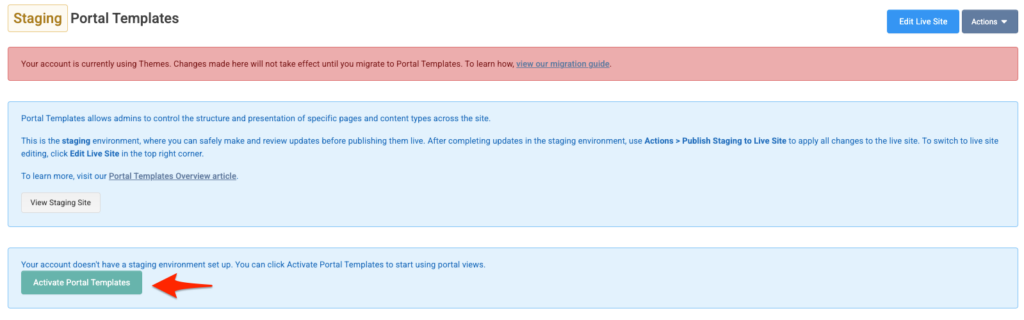
Staging vs. Live Environments
REACH includes two editing environments:
- Staging Site (default): Safely make and review changes before publishing
- Live Site: Displays all published content to the public, any updates will show publicly when saved.

You can switch between environments using the Edit Live Site or Edit Staging Site button in the top right corner.
Tip: Watch our Setting up your REACH Portal: Portal Templates video for a quick walkthrough.
Recommended Starting Steps
When getting started, we recommend the following order:
- Build out your key content first (such as sponsorships, campaigns, projects, and places) so you can preview how it will display on your site
- Go to Settings → General Settings and upload your logos
- Go to Portal Content → Portal Branding to select fonts and set your colors
- Customize your core site templates first:
- Index Header and Index (if using the portal home page)
- Header
- Footer
- 404 Page
- Configure your navigation menus under Settings → Menus based on the features you’re using
- For example, if you aren’t using Campaigns, remove Campaigns from your main menu
- Click through the remaining portal templates and make additional edits as needed
- Preview changes on the staging site, then publish updates when you’re ready
Customizing Portal Templates
Before customizing portal templates, we recommend completing the REACH Setup Checklist (and the Sponsorships Setup Checklist, if applicable) and building out key content—like sponsorships, campaigns, projects, and places—so you can preview how everything will display on your site.
Each portal template corresponds to a specific page or content type, such as campaigns, sponsorships, projects, or places.
Tip: View the list of portal templates in the table below, and click a Portal Template Title to see editing details for that template.
Editing Layouts within Portal Templates
Portal templates are built using:
- Rows
- Columns
- Blocks
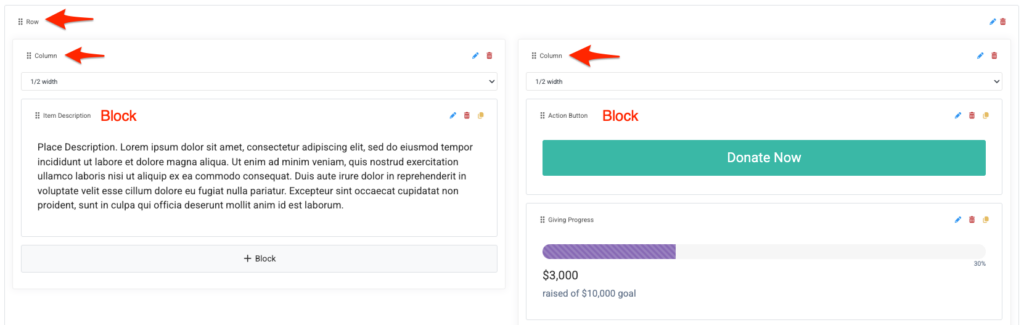
Row, column, and block visibility can be adjusted within each row, column, or block. If you don’t want a row, column, or block to display, simply delete it.
Blocks are the individual content sections on a page (such as text, buttons, images, listings, or featured content).
You can adjust spacing, colors, text styles, and content within each section. When you finish editing a section, click Done. When you’re finished editing the template, click Save.
To preview your updates before publishing, review changes in the staging environment by clicking View Staging Site.
Available Portal Templates
Click the Portal Template Title to view editing details for each template.
| Portal Template Title | Description |
| Index Header | Controls top content area on the homepage. |
| Header | Defines navigation and branding across all pages. |
| Footer | Sets footer content and links site-wide. |
| Index | Main content layout for the homepage. |
| Album | Displays album info and photo layout. |
| Calendar | Shows how events appear on the calendar page. |
| Campaign | Layout for an individual campaign page. |
| Campaigns | Overview and listing of all campaigns. |
| Cart | Controls how the shopping cart is displayed. |
| Event | Details and layout for an event page. |
| Events | Calendar and list view for all events. |
| Message | Layout and details for a single message. |
| Messages | List view for all messages or posts. |
| Place | Layout for an individual place page. |
| Places | Overview display for all places and maps. |
| Product | Display for individual product detail pages. |
| Products | Layout for main product listing page. |
| Project | Display for individual project detail pages. |
| Projects | Layout for main projects listing page. |
| Sponsorship | Display for individual sponsorship detail pages. |
| Sponsorships | Listing layout for sponsorships overview page. |
| 404 | Displays content for non-existent page URLs. |
Publishing and Actions
Staging Site Actions
After completing updates in the staging environment, use Actions → Publish Staging to Live Site to apply all changes to the live site.
Top-level Actions menu options on the staging site include:
- Publish Staging to Live Site – Apply all changes to the live site
- Reset to Default Views – Restore all Page Views in staging to their original defaults
- View Staging Site – Preview the staging site on the web
- Export Portal Templates – Generate an export of all portal templates
- Import Portal Templates – Import previously exported portal templates (this will overwrite the current staging views)
Note: Importing portal templates will overwrite your current templates in the selected environment.
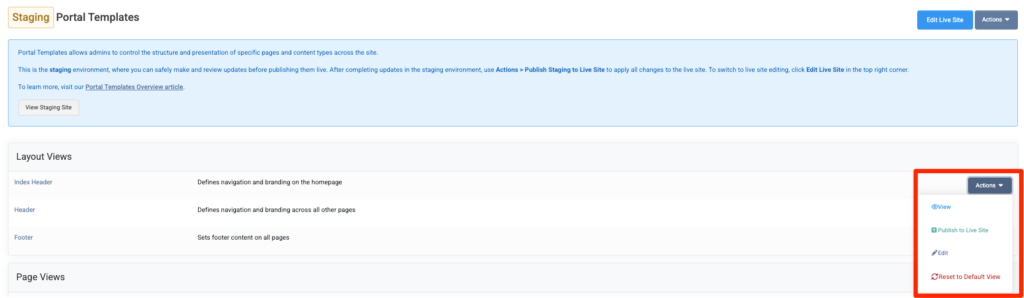
Individual portal templates in staging also have an Actions menu, allowing you to:
- View the page
- Publish it to the live site
- Edit it
- Reset it to the default view
Live Site Actions
When editing in the Live site, the top Actions menu provides options to manage published content:
- Copy Live Site to Staging – Duplicate live site content to staging for editing
- Reset to Default Views – Restore the default Page Views (in staging) so you can restart edits from the original templates
- View Site – Preview the live site
- Export Portal Views – Generate an export of all portal templates on the live site
Individual portal templates in Live also have an Actions menu, allowing you to:
- View the page
- Copy it to the staging site
- Edit it
- Reset it to the default view
Together, the Staging and Live environments help you safely preview changes and control what gets published to the public site.