
At REACH, we understand that security and privacy in the online world of data and donor management, payment processing and child sponsorship is a critical issue. We understand its importance and are dedicated to addressing it through as many means as possible.
These are some of the many built-in features and methods in which REACH addresses security and privacy in terms of sponsorships.
If there is an additional privacy and security feature you aren’t sure if REACH offers, or you’d like to request, please contact us.
Sponsorship’s Title/Name
For child protection and privacy measures, organizations can use alpha and/or numeric characters for the sponsorship title instead of using the sponsorship’s name.
To do this, simply use alpha and/or numeric characters when entering the Sponsorship’s Title/Name.

If you do this, you can add a Sponsorship Custom Field for Sponsorship Name, with the Referral of Sponsorship Type and choose to Show to Sponsors Only, if you’d like your sponsors to know the child’s name once sponsored.

To add the sponsorship’s name, you will need to edit your Sponsorship Type and add the Sponsorship Name as a Custom Field.

Then, go into your Sponsorship’s profile and add their name in the Sponsorship Name field.

Now, if you have Show to Sponsors only checked, the sponsorship’s name will display when the sponsor is signed in to the Donor Portal.

Sponsorship Images
In REACH, a profile image is required for sponsorships to display publicly.
However, if you do not want to use the sponsorship’s actual image, you can use an avatar or any placeholder image.
REACH Tip: We’ve found several great Avatar images available on Canva, which is free to registered nonprofits. Simply size to 900 x 900 px before uploading to REACH.
Here’s an example:

Some organizations also use a “Photo Displayed After Sponsorship” as their profile images.
In this instance, the organization will put any images of their sponsorship in their Sponsorship’s Album and require that a sponsor be logged into REACH to view the images.
Note: The option to hide sponsorship images by Sponsorship Album requires your REACH Theme be on Quartz 2.2 or Ruby 2.2 or higher. Please refer to our Updating Your REACH Theme article to learn more.
To do so:
- In the sponsorship’s Sponsorship Type, be sure to check the box for Private Albums

- Then, from the sponsorship’s profile, click Actions > Album to add your sponsorship images
REACH Tip: To hide all Sponsorship Albums, not certain Sponsorship Types, go to Settings > Portal Setup > Sponsorships Tab and check the box to Make sponsorship albums hidden from the public and visible to only logged in sponsors.

Now, when a sponsor is logged into their Donor Profile, they can go to My Sponsorships and click View Profile next to their sponsorship.

And, then click on the Album tab to view the images.

If a sponsor has not logged in, the Album tab will not be shown.

Sponsorship Profiles
REACH offers several sponsorship classifications – sponsorship status, sponsorship visibility, and sponsorship program status.
In terms of privacy, you can choose to modify the sponsorship’s visibility to Hidden, either individually or for all sponsorship profiles in a Sponsorship Type. Any sponsorship’s marked as Hidden will not be viewable on your public webpage but only visible to sponsors when logged into their donor portal.
To hide all fully sponsored sponsorship profiles, view the full instructions here.
To hide an individual sponsorship’s profile:
- Go to the Sponsorship’s profile
- Click Actions > Edit
- Check the box next to Hidden
- Click Save Changes

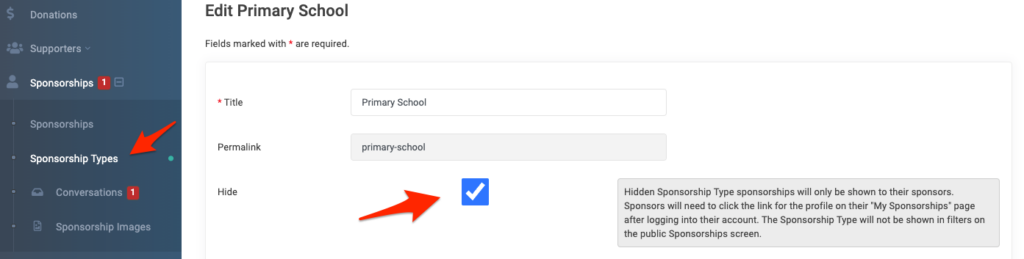
To hide all sponsorship profiles within a Sponsorship Type:
- Go to the Sponsorships > Sponsorship Types
- Click Actions > Edit
- Check the box next to Hide
- Click Save Changes
Limit Search Engine Indexing for Sponsorship Profiles
To enhance confidentiality, the indexing of your sponsorship profiles by search engines like Google or Bing is restricted. This setting is enabled by default. While it prevents your profiles from appearing in search results, anyone with the direct link to your profile will still be able to view it.
This option can be found by going to Settings > Portal Setup > Sponsorships tab.
If you need to fully prevent public viewing of sponsorship profiles, edit the sponsorship profile to mark as Hidden.
Sponsorship Birthdate
REACH is designed to automatically display a calculated age instead of the birthdate on a sponsorship profile page.
In a sponsorship’s profile record, when you enter the birthdate into the Date of Birth field:

The birth date is recorded on the back-end and available to be filtered in Reports.
For example, you can filter by Sponsorship Date of Birth in the Sponsors Report and in the Sponsorships Report, as shown below:

On your public page, the Sponsorship Date of Birth will be automatically calculated to an Age to keep the birthdate private.

Sponsorship Conversations
Using REACH, sponsors and sponsorships can exchange messages using our Sponsorship Conversations feature. However, any conversations exchanged must be moderated by an Admin.
Any new Conversations will be indicated by a red number next to Sponsorships > Conversations.

From here, an Admin can review the Conversation sent and determine next steps.
Refer to our Sponsorships Conversations article for more detailed information.
Sponsorship Grouping
Some organizations choose to not sponsor individual children as a privacy safeguard.
We’ve seen organizations list sponsorships based on age/grade.
For example: Primary Age Boy, where the number of Shares available are increased because the grouping includes all Primary Age boys in the sponsorship program.

We’ve also seen organizations list sponsorships by classroom.

Both of these options require setting up a Sponsorship Type with the larger number of Shares available and then adding a generalized Sponsorship profile (ex: Primary Age Boy or 3rd Grade Classroom) under that Sponsorship Type.
Once a supporter sponsors this way, the admin will then create the sponsorship supporter relationship on the admin side. This can be done by having individual sponsorships marked as Hidden and then creating the sponsorship-supporter relationship from the Admin Console. Refer to our Replacing a Sponsorship for a Supporter article.
Sponsorship Messages and Updates (Private Messages)
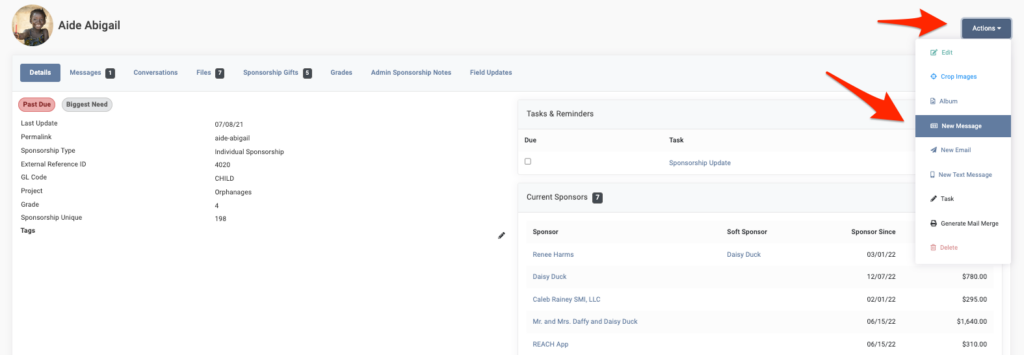
You can send Private Messages—updates about a sponsorship—directly to sponsors. These messages will appear on the sponsorship profile and in the Donor Portal once the sponsor logs in. You can also include a link to a video or file in the message.
To send a private message, go to the sponsorship’s profile and select Actions > New Message. Alternatively, click on the Messages tab and click New Message.
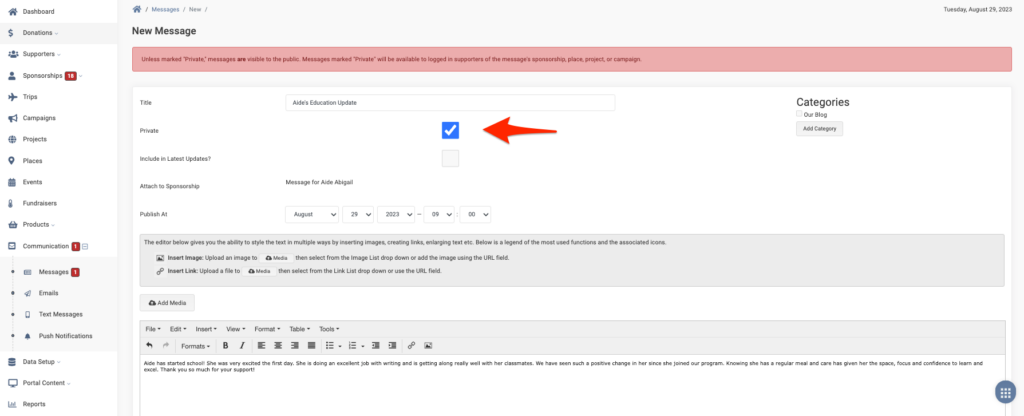
Prepare your Message, and be sure to mark as Private if you want the Message to only appear to sponsors when they are logged in.
From the Donor Portal, the sponsor can then view the Message by clicking on the sponsorship’s name.
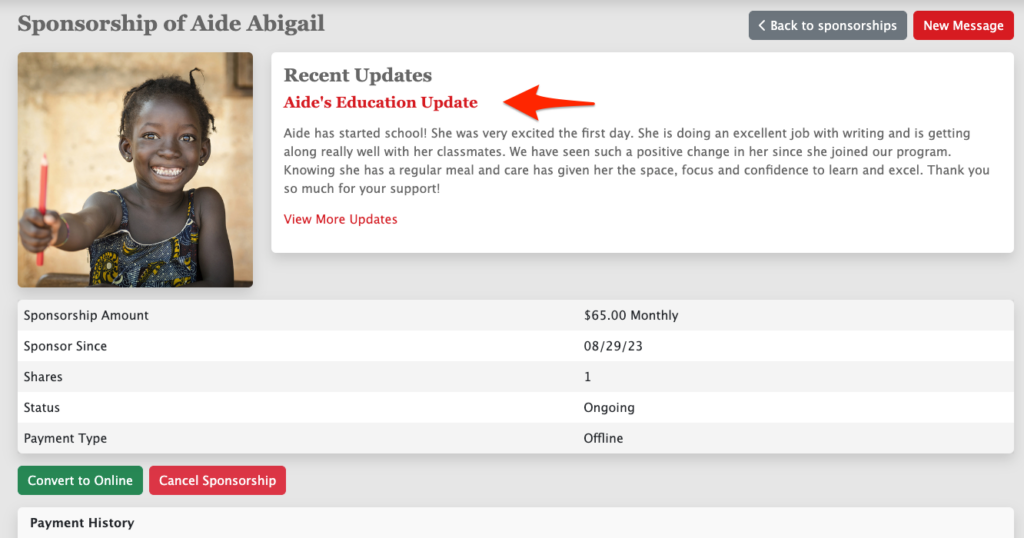
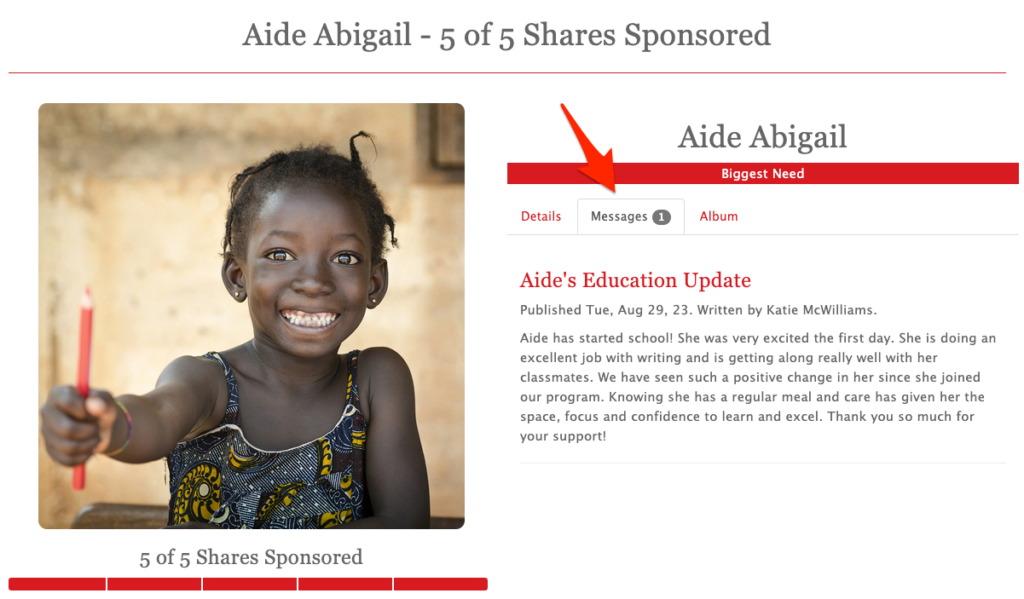
Or, when logged in, they can view the Message on the Messages tab from the sponsorship’s public profile. If marked Private, the sponsor must be logged in to view. If not marked Private, the Message is public.
Supporters can be automatically notified when a new Message is posted by enabling the Supporter Daily Digest Email.
To do so, go to:
- Go to Settings > Account Rules > General tab
- Click on Enable Supporter Daily Digest Email
Refer to our Messages article for additional information on Messages.