
Registration information is shown:
- At the bottom of the Event dashboard under Registrations; and,
- On a Supporter’s profile under the Event Registrations tab
Note: Custom Form Field responses are best viewed using the Export to Excel button found on the Event dashboard under Registrations. The Event Registrations Report will not list Custom Form Field responses.
We also recommend you set up:
- Admin Notifications and Automations for admins to be notified when a supporter has registered for an Event; and,
- Supporter Notifications and Automations for supporters to receive an Event Registration confirmation email.
Event Page View
To view a supporter’s Event Registrations from the Event’s Individual Record:

Go to Events > Click on the Event’s Title
Scroll down to find the Registrations section

You will see the number of Registrations, Event Date, Supporter Name, Ticket Types and Status
From here, you can:
- Generate an Email to the registrants
- Export to Excel, this will export the registrant, any attendee data and the Custom Form Fields to a spreadsheet you will receive via email
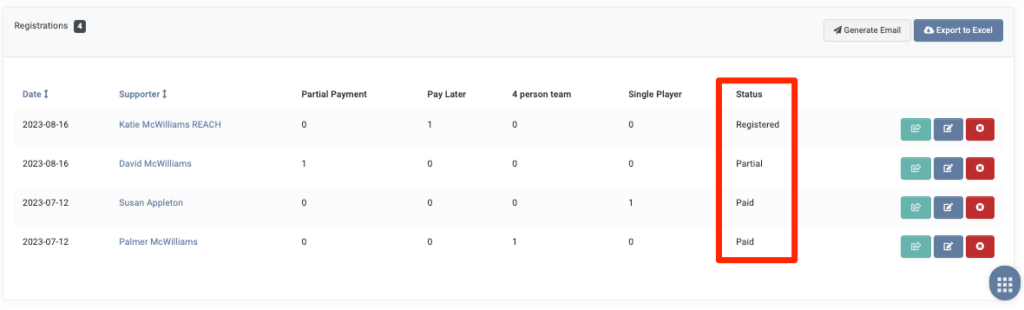
The Status column will display one of the following:
- Registered – The Supporter has registered for the Event but has not made a payment. This is used when there is a Free or Deposit/Pay Later ticket type and a deposit is not required nor paid at time of registration.
- Partial – The Supporter has made a partial payment to the Event’s ticket, but not paid in full. This is used when there is a Deposit/Pay Later or Recurring Monthly Payment ticket type and the payment was not paid in full at the time of registration.
- Paid – The Supporter has paid in full for their Event ticket. This Status occurs once the ticket has been paid in full, whether its a time of registration or once multiple payments have been made and the full payment amount is met.
Next to the supporter registrations, there are buttons to View Details, Edit and Cancel and Refund Donation.
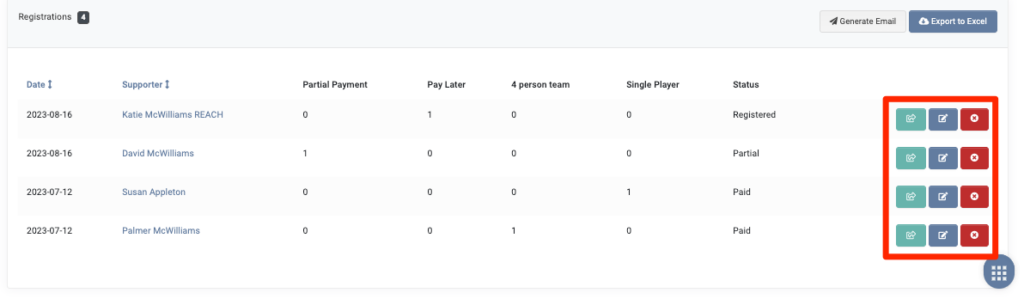
From the View Details button, you can see the Date, Supporter name and link to their profile record, Status, any Custom Form Fields and Tags, Item, Ticket Type, Quantity, Tax-deductible and Taxable amounts, Total Price and Item Total and their Donations/Payments

- Note: Next to the Donation, click Edit and then Edit Cart to edit the Amount, Purpose and Event Ticket if needed.
From the Edit button, you can edit Custom Form Fields.
Use the Cancel and Refund the Donation (registration) to cancel and provide a refund.
Supporter Profile View
To view a supporter’s Event Registrations from the Supporter’s Individual Record:

Go to the Supporter record > Click on Event Registrations tab
You will see the Event Title, Registration Date, Event Date, Tickets and Status.
From here, you can:
- View Details for the Registration
- Edit the Registration, including their custom fields and additional information
- Cancel and Refund the donation (registration)