
Supporters can use the self-service Donor Portal to generate, download and print their own Contribution Statements.
Before Supporters can access your preferred Contribution Statement Template, be sure you’ve configured the appropriate Supporter access settings (Settings > Mail Merge Template > Edit and check boxes for Grant Supporter Access and Use for contribution statements). See Customizing Your Contribution Statement Template for full instructions.
If no Contribution Statement Template has Grant Supporter Access enabled, REACH will use a default basic table listing when a Supporter generates their own statement.
How Supporters Download a Contribution Statement
To generate a Contribution Statement from the Donor Portal, the Supporter will:
- Log in to the Donor Portal using their username and password.
- Each organization’s Donor Portal URL is unique and will look similar to:
https://yourorganizationname.reachapp.co/users/sign-in
- Each organization’s Donor Portal URL is unique and will look similar to:
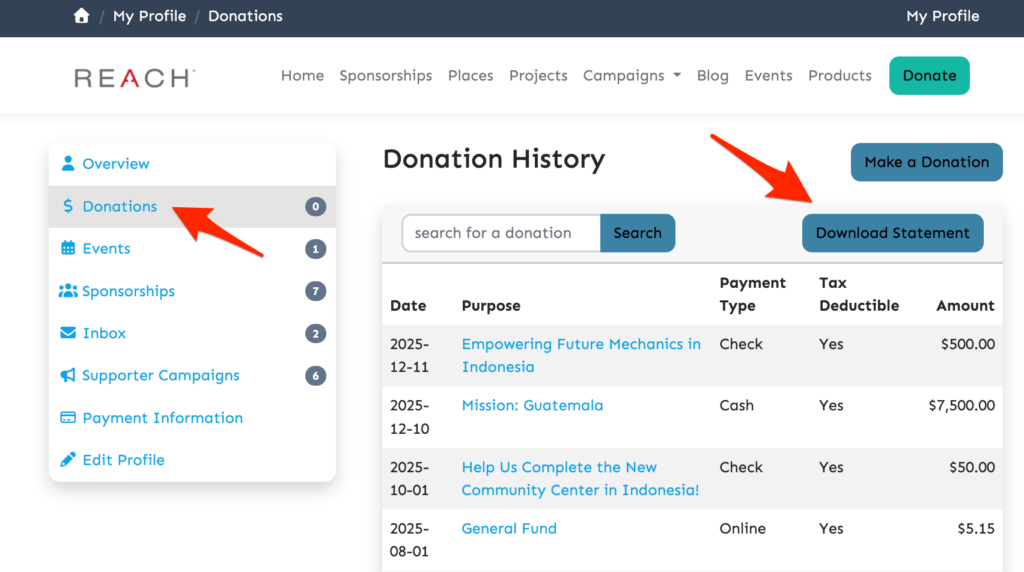
- From the Donations tab, click Download Statement.
- Select the Date Range to include on the Contribution Statement.
- Tip: Select the Last Year Quick Date Range to automatically include January 1 through December 31 of the previous year.
- Click Submit.
Canada-Based Organizations
If your organization is based in Canada and uses REACH’s CRA Contribution Statement settings, the Donor Portal works differently.
Instead of generating a new Contribution Statement, the Supporter will see a list of Contribution Statements that have already been generated for them by an Admin.