
Our Admin Console is the centralized location in REACH where you can manage all of your account data and information. In this article, we’ll walk you through the general navigation of the Admin Console and explain how to use and customize to your preferences.
Dashboard Numbers
Your Dashboard provides a snapshot of supporter, sponsorship, sponsor, and donation information and activity.
The top part of the Dashboard displays any flagged notes for your organization – primarily Tasks, Past Due alerts, and time-sensitive REACH announcements.
Dashboard Numbers are shown next. The visibility of these Dashboard numbers are based on the Admin Permissions for Supporters, Donations, Sponsorships and Sponsorship Supporters. Dashboard Numbers include:
- Supporters: Total number of all Supporter records in REACH
- Donations YTD: Amount of total completed Donations year to date
- Sponsorships: Total number of all Sponsorship records in REACH (Active, Left Program (Disabled), and Graduated)
- Active Sponsors: Cumulative number of all active one-to-one sponsorship-supporter relationships
Located just below the Dashboard Numbers in your Admin Console, Dashboard Widgets provide visual insights into your key performance indicators (KPIs), metrics, and supporter engagement. The goal here is to help you quickly understand trends, assess performance, and make informed, strategic decisions that move your organization forward.
Refer to our Dashboard Widgets article to learn about the widgets included by default,how to add new widgets, and our recommended widgets along with how to configure them for meaningful insights.
Admin Console Navigation
Top Navigation

Add a New Shortcut
For your personal Admin Console Dashboard, you can add shortcuts enabling you to quickly navigate to various pages within the Admin Console. Common examples are to the Donations or Sponsorships modules, to a specific Project or Campaign you are in charge of or to a specific Setting such as Admin Users.
To add a shortcut:
- First navigate to the screen you want to add a shortcut to in your Admin Console
- Click on the REACH logo > +Add More
- Add a Title
- If you are already on the screen you want for the shortcut, the URL will be pre-populated. For example, for our campaign called Empower Our Teachers it would be /admin/campaigns/empower-our-teachers
- Click Create
Once created, any time you want to jump directly to that page, click the REACH logo, and select that link.
Search Bar
Using the Search Bar at the top of the screen, you can type in any specific name or detail to do a quick-search within the primary modules of Supporter, Sponsorship, Project, Place, and Campaign.
Clicking on the three bars will give you a full screen by hiding the left-hand sidebar.
Breadcrumbs
Underneath the search bar you will see a Breadcrumb trail. This is intended to help ease navigation, orienting you to exactly where you are within the Admin Console at any time, and giving you quick links to return to previous sections or modules. This is an example of a breadcrumb trail:
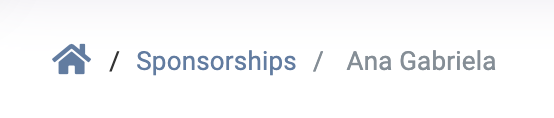
In this example shown, clicking on Sponsorships will take you back to the main Sponsorships page from Ana’s record.
Fun fact: The term Breadcrumb originated from the Hansel and Gretel fairy tale in which the two children drop breadcrumbs to form a trail back to their home.
Top Right Icons
The Gear will dropdown a list of the Settings for managing your REACH account, Donation settings, Integrations, and Communication settings.
The Pop-out icon provides you with direct links to view your public REACH portal.
Click the Question Mark for quick access to Contact Support, the Knowledge Base, Webinars, Training Sessions, sending a secure message and calling support.
The Bell notifies you of assigned Tasks. A red number indicates that the Admin that logged in has Tasks awaiting them.
The Profile icon links to account information for the Admin User. This includes the Admin’s name and email address and provides the Admin the option to Change Password/Info, view Fullscreen, Enable/Disable Dark Mode or to Logout of the Admin Console.
Left Navigation – REACH Modules
On the left-hand sidebar of the Admin Console you can access the Modules that you will need for most of your everyday activities in REACH.
A green dot indicates the module you are currently accessing. A red number indicates unopened Conversation messages. Click any arrow to access more areas.
At the bottom of the left-hand sidebar, you will find buttons to Contact Support, Send a Secure Message/File(s), view the Knowledge Base, and Call Support.
Screen Controls
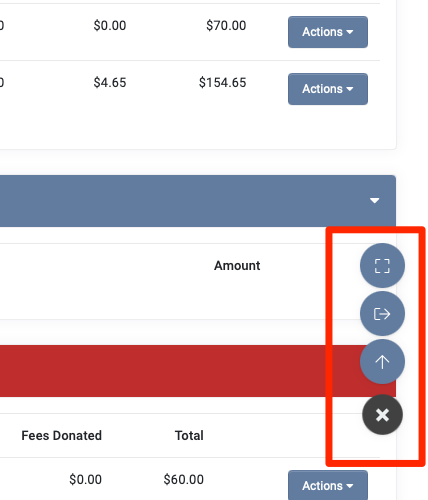
Clicking on the round Grid at the bottom right of any page allows you to Scroll Up to the top of the page, Logout of the Admin Console or View as a Full Screen.
Company Info
At the very bottom of the Admin Console, you will see links to our parent company, Sugar Maple Interactive, LLC as well as an About us page, our Terms + Conditions and Documentation.
Now, view our Support Information article to learn how to get and stay in touch with us.