
Keeping supporter records free of duplicates helps ensure accurate communication, reporting, and donor management. REACH includes a built-in Resolve Duplicates tool that identifies potential duplicate supporter records and allows you to review, reject, or merge them.
Note: Resolve Duplicates is available on the Essentials and Pro plans. See Plan Levels for more information.
Best Practice: Run the duplicate check regularly, especially after importing data or adding a large number of new supporters.
How REACH Identifies Duplicates
REACH uses contact information to identify potential duplicate supporters. During the duplicate check, it compares:
- Email address
- Phone number
- Mailing address
Supporters are not matched by name alone.
REACH also requires every supporter to have a unique primary email address. When adding a new supporter, the system prevents duplicate records from being created if the primary email address already exists. However, duplicate supporters can still occur if a different email address is used or if matching contact information is added later.
Run a Duplicate Check
Important: The duplicate check looks for exact matches. For example, 123 Main St will not match 123 Main St. (with a period).
- Go to Supporters
- In the top right, click Actions > Resolve Duplicates.

REACH will display a list of potential duplicate records for review.
Each potential duplicate is displayed as a group containing:
- Primary Supporter Record(blue): The supporter record that serves as the primary record for review.
- Possible Duplicates Found(yellow): One or more supporter records that may be duplicates of the primary record.
From here, you can Skip, Reject, or Merge each potential duplicate.
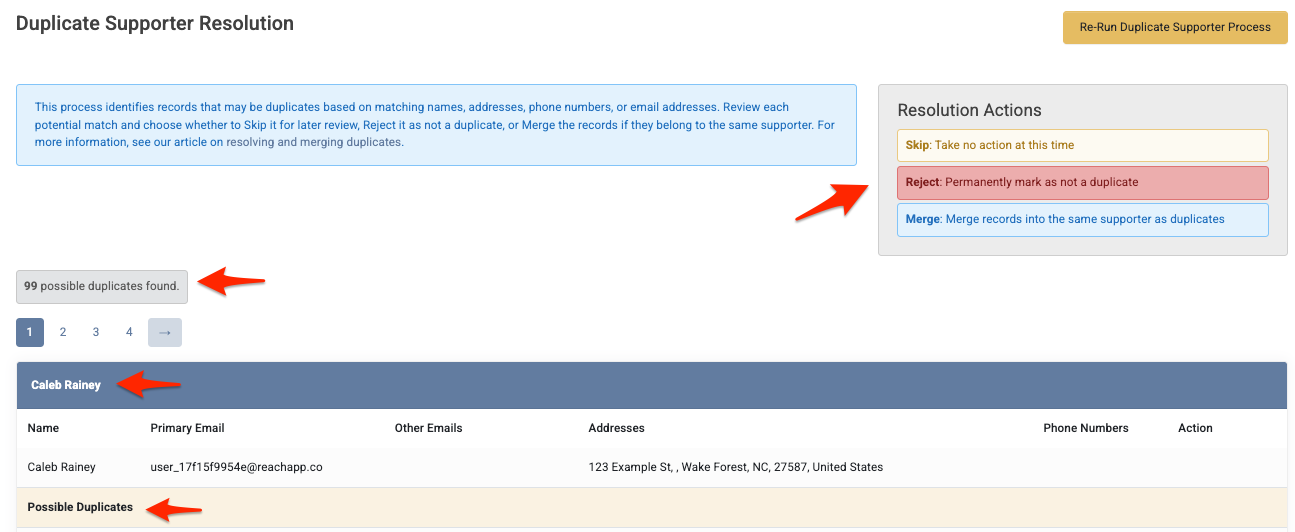
Skip, Reject or Merge Duplicates
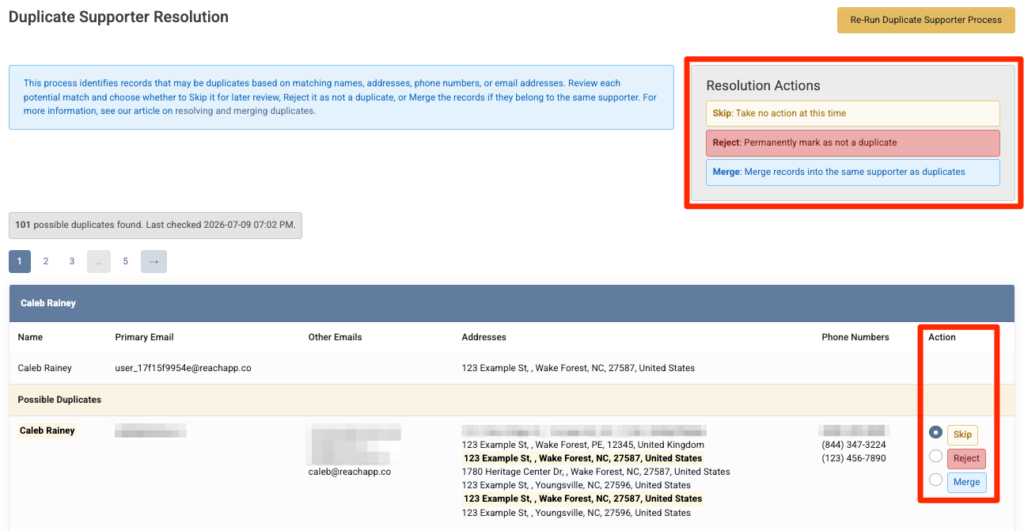
The Possible Duplicates list highlights the fields that caused two or more supporter records to be identified as potential duplicates.
For each possible duplicate, choose one of the following actions:
- Skip – Take no action at this time. The record remains on the Possible Duplicates list so you can review it later.
- Reject – Permanently mark the records as not duplicates. The match is removed from the Possible Duplicates list and will not appear again in future duplicate searches.
- Merge – Combine the records into a single supporter record. This starts the merge process, allowing you to choose which information to keep.
After selecting an action, click Resolve Duplicates.
Important: Reject and Merge actions are permanent and cannot be undone by an admin.
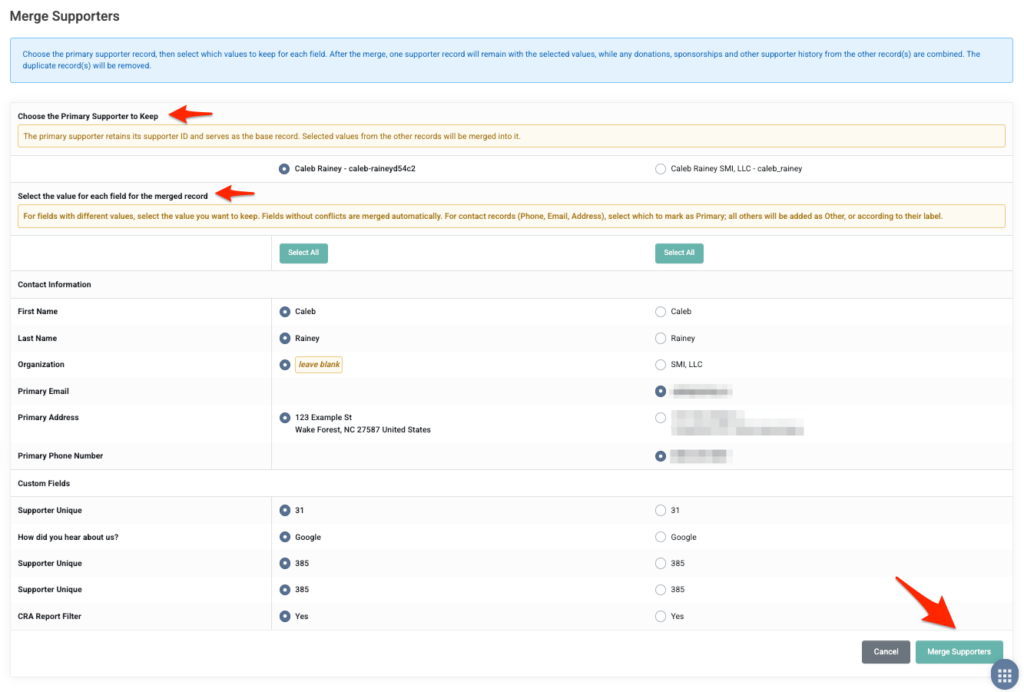
Merge Supporters
When you choose to merge duplicate supporters, you’ll complete the following steps:
Step 1: Choose the Primary Supporter
Select the supporter record you want to keep.
The primary supporter retains its Supporter ID and serves as the base record. Information you choose from the other record(s) will be merged into the primary supporter.
Step 2: Choose the Values to Keep
For fields that contain different information, select the value you want to keep in the merged supporter record.
Fields with matching values are merged automatically.
For contact information (phone numbers, email addresses, and mailing addresses), choose which entry should be marked as Primary. Any additional contact information will be retained as Other or under its existing label.
Complete the Merge
Click Merge Supporters, then confirm the action.
The merge will begin and may take a few moments to complete.
When finished, a results page will display a summary of the merge.
To continue reviewing additional potential duplicates, click Back to Resolve Duplicates.
Note: Merging combines the supporters’ donations, sponsorships, conversations, activities, and other related history into a single, new supporter record. The duplicate record is permanently removed.
Run the Duplicate Check Again
After the initial duplicate check, you’ll need to re-run the process whenever you want REACH to search for new potential duplicates.
- Go to Supporters.
- Click Actions > Resolve Duplicates.
- Click Re-Run Duplicate Supporter Process.
A new duplicate check will be added to the processing queue. Once complete, the updated list of potential duplicates will be available for review.
Note: Supporters previously marked as Rejected are excluded from future duplicate checks and will not appear again.
Review the Merged Supporter
After merging supporter records, we recommend reviewing the merged record to ensure the information is accurate.
- Open the merged supporter record.
- Go to the Contact Methods tab.
- Review the phone numbers, email addresses, and mailing addresses.
- Remove any duplicate contact methods and confirm the correct records are marked as Primary.
- Review the remainder of the supporter record to verify the merged information.
Taking a few moments to review the merged record helps keep your supporter data clean and prevents confusion when communicating with supporters in the future.
Merge Supporters from an Individual Supporter Record
You can also merge supporters directly from an individual supporter record without using the Resolve Duplicates process.
- Open the supporter record you want to keep.
- Click Actions > Merge.
- In the Supporter field, search for and select the supporter you want to merge into the current record.
- Click Merge.
- Confirm the merge when prompted.
Important:
- The selected supporter will be merged into the current supporter record.
- The Merge button is disabled if you select the current supporter.
- Merging supporters is permanent and cannot be undone by an admin.