
Supporters can login to the self-service donor portal to view, download and print their contribution statements.
Organizations can Grant Supporter Access to the Contribution Statement printout by going to Settings > Mail Merge Templates and clicking Edit next to their preferred Contribution Statement template.
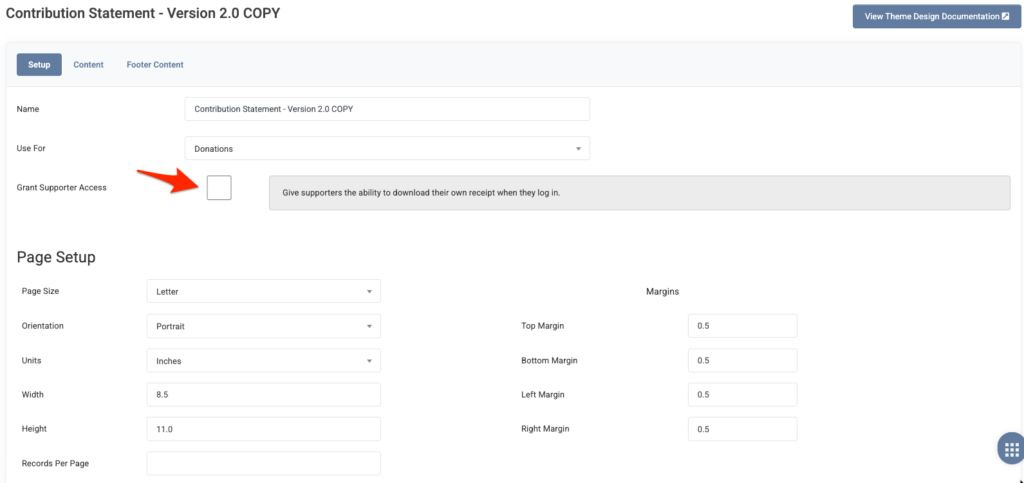
This is the mail merge template that will then be used when a Supporter downloads their own Contribution Statement in the Donor Portal. If no Contribution Statement Mail Merge is enabled for supporter access, a default basic table listing will be used.
Here’s how supporters can print Contribution Statements from their Donor Profile:
- Login to their Donor Portal with their username and password
- Note: Login url is unique per organization, but will be similar to: https://yourorganizationname.reachapp.co/users/sign-in
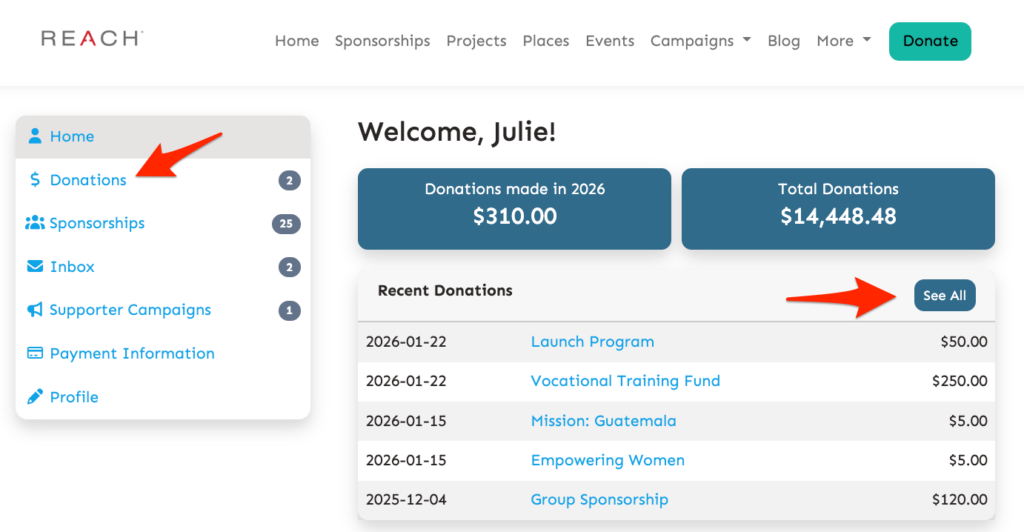
- Next to Recent Donations, click on See All or click on Donations
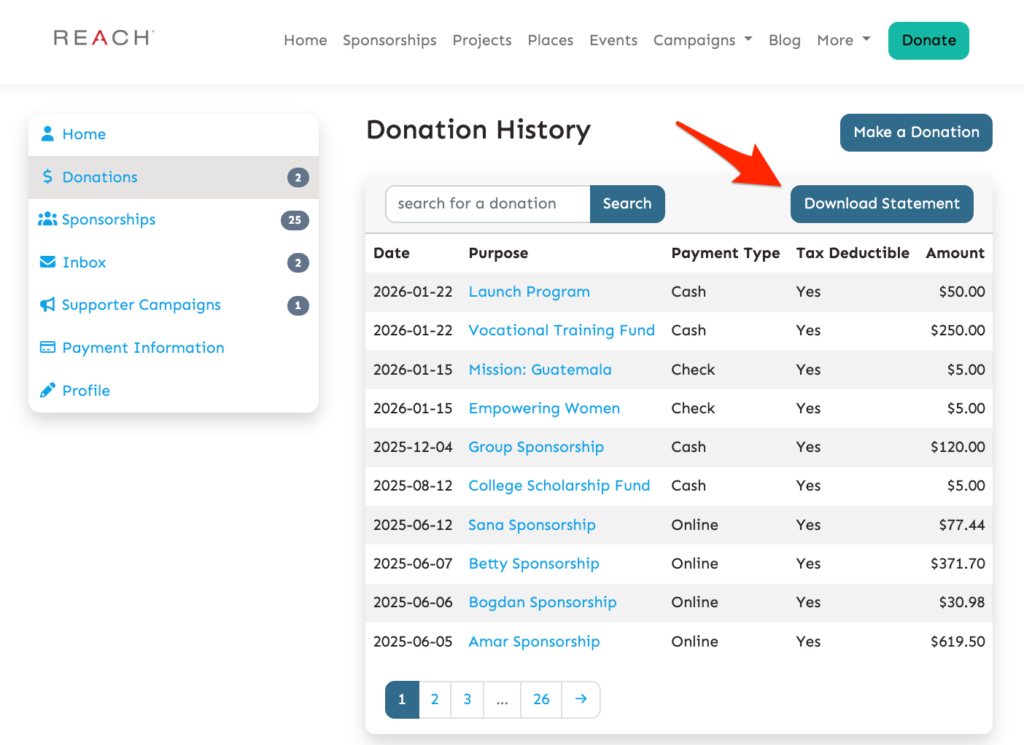
- Click the Download Statement button
- Select the Date Range for their Contribution Statement.
- Note: Use the Quick Date Range of Last Year to pull January 1st – December 31st.
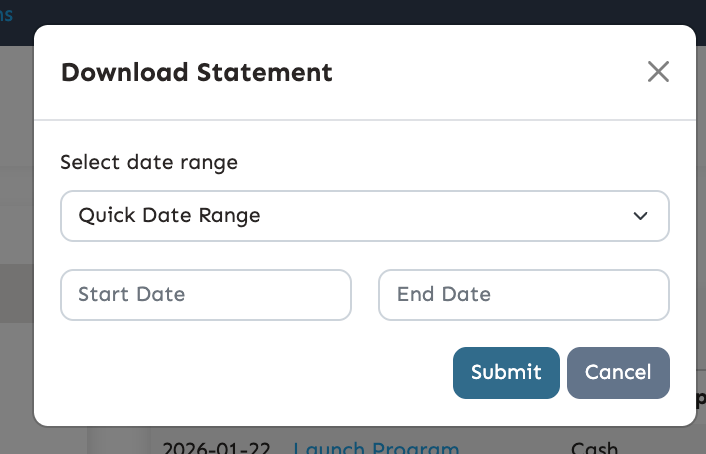
- Click Submit
A PDF of the Contribution Statement will be generated for the supporter to download and print.
If you are a Canadian-based organization, and are using CRA Contribution Statement settings, a Supporter will instead see a list of Contribution Statements that have been generated for them by an Admin.