
Supporter Relationships in REACH allow you to link supporters in meaningful ways, such as family connections, church groups, or business affiliations. Mapping these connections helps you understand your network, tailor communications, and identify new opportunities for engagement and giving.
These relationships serve as a quick reference for admins within a supporter’s profile and can also be included in Reports or exported when needed.
Supporter Relationships are available on the Essentials, Pro, and Pro Plus plans.
Key points about Supporter Relationships:
- Created: Data Setup > Relationships
- Added and viewed: Within a Supporter’s record
- Reported: Listed in a Relationships Report
- Exported: Available through the Relationships Export
See Also: Organization and Segmentation Overview – Learn when to use Supporter Groups, Segments or Relationships.
Creating Relationships
To view and create Relationship types, go to Data Setup > Relationships
All Relationship types will be shown on the Relationships index page.
You can choose to automatically include the following Relationship types by default:
- Spouse/Partner
- Employer ↔ Employee
- Donor Advised Fund ↔ Advising Donor
- Parent ↔ Child
- Pastor
- Church Member
- Volunteer
To do so, click on Add Default Relationships, then click Confirm.
To add new Relationship types, click + Relationship:
- Add a Title
- Add an Inverse Title ↔ (Optional)
- Note: This is an optional title for the inverse ↔ of this relationship. For example, if the relationship is “Parent,” the inverse would be “Child.” Leave blank if the inverse is the same as the original title, such as “Spouse” or “Sibling.” Inverse relationships will be denoted with the ↔ symbol.
- Add a Description
- Note: The Description field is for admin use only. Use it to provide context or details about the Relationship for other admins.
- Click Save
Relationships can be Edited using the pencil icon or Deleted using the trash icon.
Note: If the Delete icon appears faded, that means the relationship is in use and can’t be deleted yet. To remove it, first identify where it’s being used by running a Relationships Report. Then, go to the supporter record(s) listed in the report and delete the relationship from there.
Adding and Displaying Relationships on a Supporter Record
Once you’ve created your Relationship types under Data Setup > Relationships, you can add them on your supporters records to make connections.
- Relationships are shown under the supporter’s profile photo by default.
- Relationships can be reordered by dragging and dropping the connections.
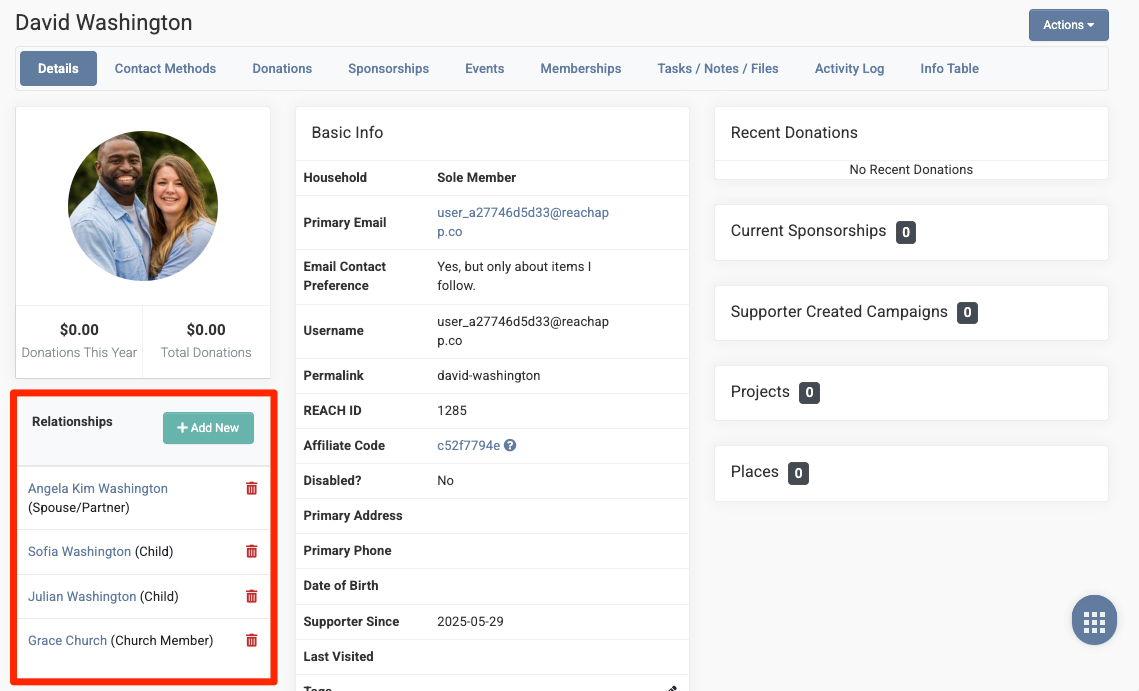
Here’s a step-by-step guide on how to add the following Relationships to a supporter’s profile. We’ll use David Washington as an example.
Add Angela Kim Washington as David’s Spouse/Partner:
- Click + Add New
- In the Relationship field, select Spouse/Partner
- Make sure Spouse/Partner is already set up under Data Setup > Relationships.
- Make sure there is already an existing supporter record for the Spouse/Partner.
- In the Supporter field, type Angela Kim Washington and select
- REACH Tip: The field will auto-fill as you type.
- Click Save Changes
Angela will now appear as Spouse/Partner on David’s profile, and vice versa.
Add David as a Church Member of Grace Church:
- Click + Add New from David’s record
- In the Relationship field, select Church Member
- Make sure Church Member is already added in Data Setup > Relationships.
- In the Supporter field, type Grace Church and select
- Click Save Changes
David will now show as a Church Member under Grace Church’s profile, and Grace Church will appear on David’s.
Add David and Angela as Parents of their children Sofia and Julian – this is an inverse relationship:
Note: Sofia and Julian Washington already have supporter profiles. Since Parent ↔ Child is an inverse relationship, once added to one profile, it automatically shows the inverse relationship on the other.
- Go to the child profile – Sofia Washington
- Click + Add New
- In the Relationship field, choose Parent ↔ Child
- In the Supporter field, type David Washington and select
- Click Save Changes
David will be listed as Sofia’s Parent, and Sofia as David’s Child.
Repeat these steps from Julian Washington’s profile to add Julian as the child of David.
Add Sibling Relationship Between Sofia and Julian:
- From Sofia’s profile, click + Add New
- In the Relationship field, select Sibling
- In the Supporter field, type Julian Washington and select
- Click Save Changes
Sofia and Julian will now be listed as Siblings on each other’s profiles.
Note: If you need to update or edit a relationship that has been set up in a supporter profile, simply delete the relationship that needs to be changed, and +Add New to update to the correct one.