
Two-factor authentication, or 2FA, adds an extra layer of security to REACH admin accounts by requiring an additional verification method beyond your username and password.
REACH organizations can require 2FA for all admins, or individual admins can choose to enable 2FA on their own accounts.
Why Use Two-Factor Authentication?
Two-factor authentication helps protect your REACH admin account by requiring two forms of verification when you sign in:
- Something you know: your REACH username and password
- Something you have: access to an Authenticator App or the mobile device associated with your admin account
This means that even if someone obtains your username and password, they cannot access your REACH admin account without also completing the second authentication step.
REACH supports two 2FA methods:
- SMS – Receive a one-time verification code by text message
- Authenticator App – Recommended and the most secure option
Requiring Two-Factor Authentication for All Admins
2FA is strongly recommended for all REACH admin accounts.
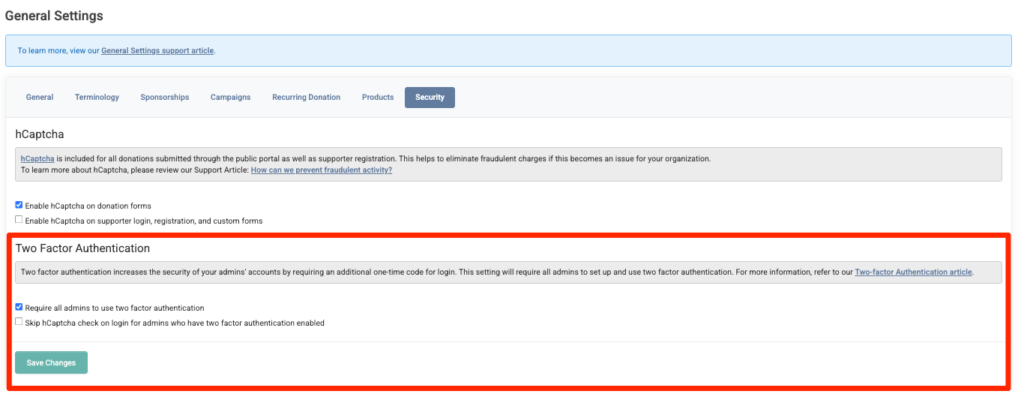
Your organization can require all admins to use two-factor authentication by going to:
Settings > General Settings > Security
Check Require all admins to use two factor authentication, then click Save Changes.
What Admins See When 2FA is Required
Once 2FA is required for all admins, any admin who has not already enabled 2FA will be required to set it up the next time they attempt to log in.
After entering their REACH login information, the admin will see a popup explaining that two-factor authentication is required for their account.
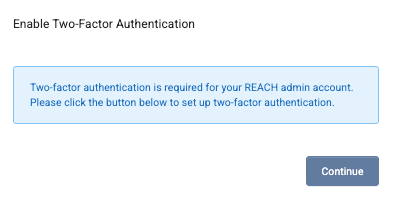
The admin must click Continue and choose one of the available setup methods:
- Authenticator App – Recommended and the most secure option
- SMS
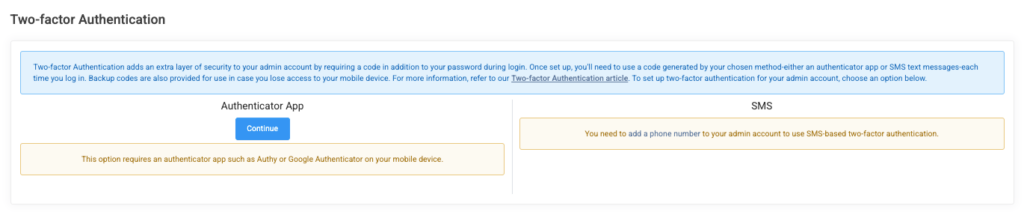
They will then follow the prompts to set up their selected method.
As part of setup, REACH will generate or send the admin their first 2FA verification code. The admin must enter this code successfully to complete setup.
This verification step ensures that the selected authentication method is working and prevents 2FA from accidentally being enabled before the admin has confirmed access to their authentication method.
Once verified, 2FA is enabled for the admin account and will be required for future logins.
Setting Up 2FA on Your Individual Admin Account
Admins can also enable 2FA on their own account even when their organization does not require it.
First, sign in to your individual REACH Admin account.
Note: We recommend that each person accessing REACH have their own Admin account. If multiple people share the same Admin account, each person will need access to the same 2FA authentication method.
At the top right, click your Profile, then select Change Password/Info.

Click Set Up Two-Factor Authentication.

Choose one of the following:
- Authenticator App – Recommended and the most secure option
- SMS
Select your preferred method and click Continue.
You will then complete the setup steps for your selected method. 2FA will not be enabled on your account until you successfully enter and verify your first authentication code.
Setting up an Authenticator App (Most Secure Option)
Important: To use this option, you must have an Authenticator App installed on your mobile device.
Common options include:
- Authy – Google Play or App Store
- Google Authenticator – Google Play or App Store
- 2FAS – Google Play or App Store
Note: You must scan the QR code from within your Authenticator App. Scanning it with your phone’s regular camera app will not complete the setup.
Open your Authenticator App and look for the option to add a new account. Depending on the app, this may appear as a + button.
Choose Scan a QR code or Enter a setup key, then follow the prompts in REACH.

Once your REACH account has been added to the Authenticator App, the app will begin generating 6-digit verification codes.
Enter the current code shown in your Authenticator App when prompted by REACH to verify the setup.
Your 2FA setup is not complete until this first code has been successfully verified.
Save Your Backup Codes
Once 2FA has been successfully verified, REACH will provide you with a set of Backup Codes.

Important: Print or securely save these backup codes. They can be used if you lose access to your phone or Authenticator App and will not be displayed again.
Click Done to finish.
Once complete, you will see confirmation that 2FA is enabled for your Admin account.

From here, you can also Re-Generate Backup Codes if needed.
Signing In With an Authenticator App
Once 2FA is enabled using an Authenticator App, you will be prompted for a verification code after entering your REACH username and password.
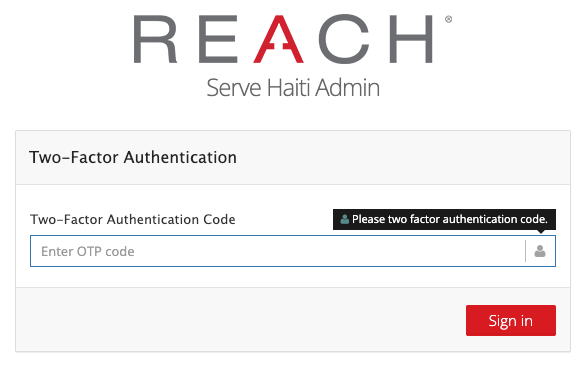
To sign in:
- Open your Authenticator App.
- Locate the 6-digit code associated with your REACH account.
- Enter the code in the Enter OTP code field.
- Click Sign in.
Authenticator App codes expire and are replaced with new codes periodically. Most Authenticator Apps display a countdown showing how much time remains before the current code changes.
Be sure to enter the code that is currently displayed in your app.
Example using Google Authenticator:
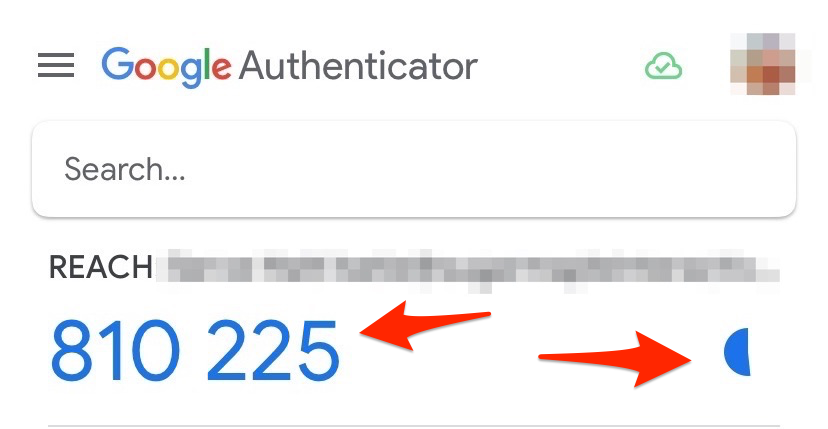
The 6-digit code changes periodically, and the countdown indicator shows when a new code will be generated.
Setting Up 2FA Using SMS
To use SMS for two-factor authentication, you must have a valid mobile phone number saved to your REACH Admin account.
During setup, click Send Verification Code.

REACH will send a one-time verification code to your mobile device.
Enter the code on the verification screen.
Click Verify.
2FA will not be enabled until this verification code has been successfully entered. This confirms that you have access to the mobile device that will be used for future authentication.
Save Your Backup Codes
Once your code has been successfully verified, REACH will provide you with a set of Backup Codes.

Important: Print or securely save these backup codes. They can be used if you lose access to your phone and will not be displayed again.
Click Done to complete the setup process.
Once complete, you will see confirmation that SMS 2FA is enabled for your Admin account.

Signing In With SMS
Once 2FA is enabled using SMS, REACH will send a verification code to your mobile device each time you sign in.
To sign in:
- Enter your REACH username and password.
- Open the text message sent to your mobile device.
- Enter the 6-digit code in the Enter OTP code field.
- Click Sign in.
A new one-time code will be sent each time 2FA verification is required.
Disabling Two-Factor Authentication
We strongly recommend keeping two-factor authentication enabled on all REACH Admin accounts.
If your organization does not require 2FA for all admins, you can disable 2FA for your own Admin account from Profile > Change Password/Info.
Click Disable Two-Factor Authentication.
Note: You cannot disable 2FA for another Admin user.

Stop Requiring 2FA for All Admins
Your organization can also remove the account-wide requirement for admins to use 2FA.
Go to:
Settings > General Settings > Security tab
Under Two Factor Authentication, uncheck Require all admins to use two factor authentication, then click Save Changes.
Note: Removing the organization-wide requirement does not automatically disable 2FA for admins who have already set it up. It simply removes the requirement that all admins use it.