
REACH provides donation receipts and contribution statements that are in compliance with the Canada Revenue Agency (CRA) for our Canadian-based nonprofit partners.
Note: To access all of the features specific to Canadian tax receipting and contribution statements, including the audit reports, the Use CRA Contribution Statements setting must be enabled.
Enabling the Required Setting
- Go to Settings > Donation Setup > Contribution Statement tab
- Check the box next to Use CRA Contribution Statements
- Click Save Changes
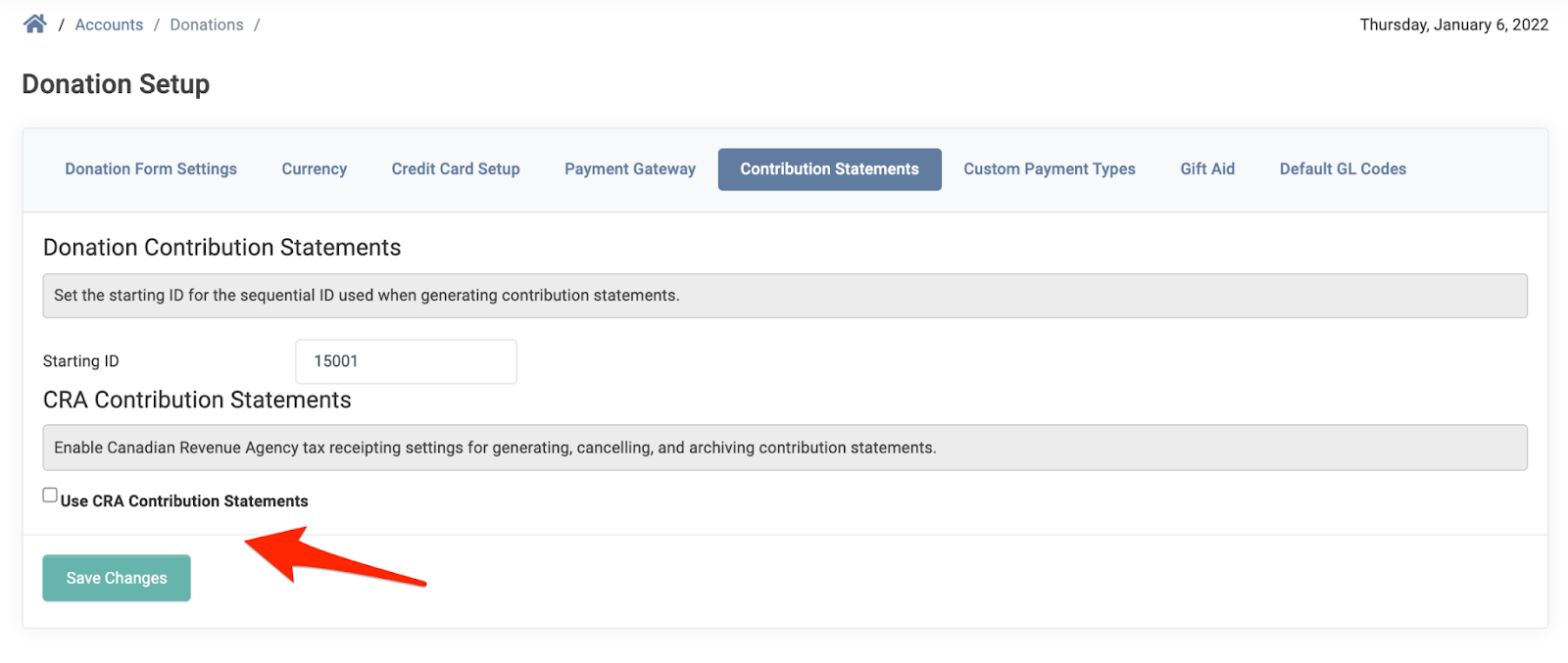
With this setting enabled, receipts and statements will include a unique serial number that can begin with the year of the donation as well as other requirements as outlined by the CRA.
Note: While we do our best to provide the required settings to comply with all CRA regulations, we do not guarantee full compliance as regulations can change at any time. Therefore, it is up to each individual organization to ensure full compliance as defined by the CRA.
Here is an overview on what is offered by REACH for accounts that enable CRA Contribution Statements:
Contribution Statement Tab
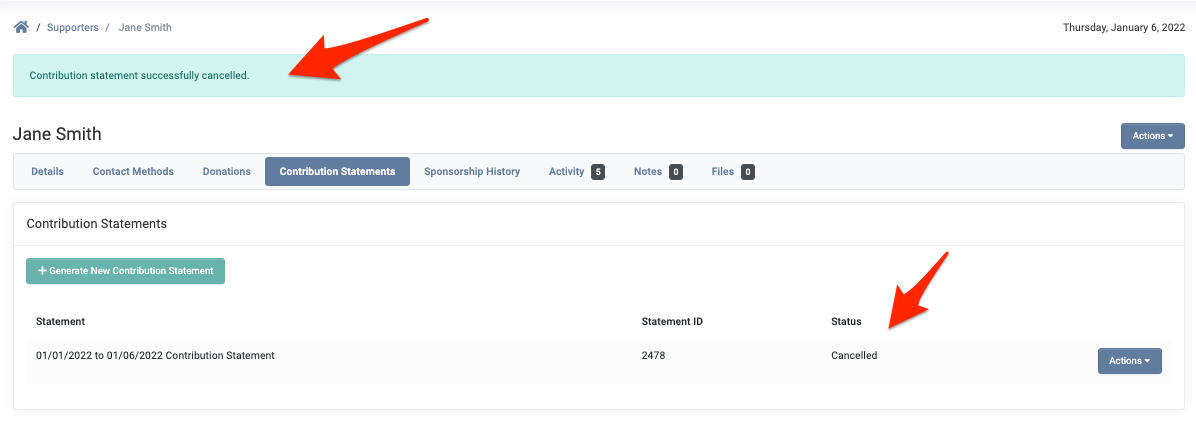
With CRA Contribution Statements enabled, your supporter records will include a Contribution Statements tab that lists all contribution statements created for a supporter, a Statement ID and the Status of either Valid or Canceled. Statements can be downloaded and canceled directly from this tab.

Each statement created for the supporter, either on the supporter record or by using the Contribution Statement Export, will automatically be included on the Contribution Statements tab for the supporter.
Note: If an admin attempts to create a Contribution Statement for the same time period as an existing statement, they will receive the following error:
“A statement already exists for this period. Please cancel the existing statement before generating a new one.”
An admin will then need to go to the Contribution Statements tab, click on the Actions button next to the contribution statement for the same time period and click Cancel.
Once canceled, you will see a bar at the top confirming the contribution statement was successfully canceled and the Status will read: Canceled.
Unique ID Number for Donations & Tax Receipt
Each individual donation in REACH receives a unique ID Number set by the system, entitled the Donation ID, which may also be referred to as the Receipt ID.
Note: This number is only shown when creating a mail merge or a contribution statement and will not appear on the Donation Details page.
REACH includes a Canadian Charitable Tax Receipt as a Mail Merge Template which is available for single donations and presented in triplicate per CRA requirements. An admin can choose to Print Receipt to create a PDF for a single donation.
Canadian Charitable Tax Receipt
The liquid code for this unique number is {{ donation.id }}.
Sequential ID Number for Contribution Statements
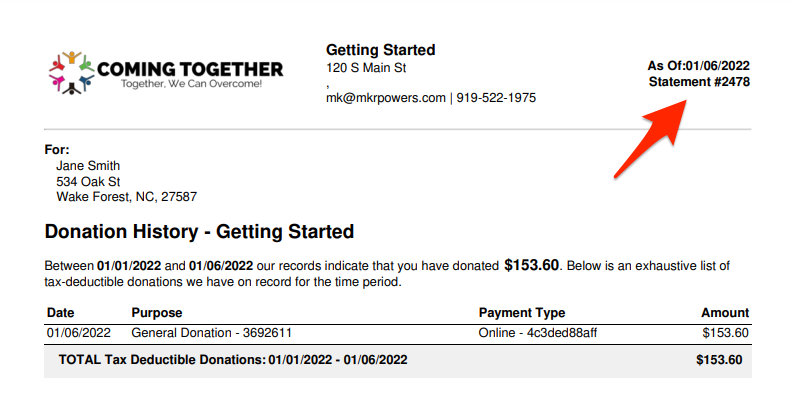
Each contribution statement includes a unique contribution statement number. This is typically shown in the top right corner of the contribution statement as shown below.
Organizations can set the starting ID (numbers only). Statement numbers will then be sequentially calculated from the starting ID.
To set the starting ID:
- Go to Settings > Donation Setup > Contribution Statements tab
- Next to Starting ID, input a number
- Click Save Changes

This ID Number is included in the example Mail Merge Templates that are available:
Contribution Statement – Version 1.0
Contribution Statement – Version 2.0
The liquid code for this unique number is {{ statement_id }}.
Preparing and Sending Contribution Statements
For more on how to prepare and send your contribution statements, please see our Customizing Contribution Statements, Sending Contribution Statements and Printing Donation Statements from the Donor Portal articles.
Contribution Statement Audit Report
REACH also includes a Contribution Statement Audit report to let you review statements that were created within the time frame selected on the report. This report is available by going to Reports > Contribution Statement Audit.
Once the report is generated, an admin will need to go to the Contribution Statements tab on the supporter’s record to view the statement sent.