
When using Products in REACH, you can create various Shipping Methods, allowing you to set different shipping amounts based on the product(s) being purchased.
When adding a Product, you can set a cost per item shipping amount or choose from one of your shipping methods to set your cost of shipping per item.
Shipping Method vs. Shipping Cost
Shipping Methods are applied when creating or editing your Products.
Once you have set up your Shipping Method:
- When adding or editing a Product, next to Shipping Cost, you will have two options:
Option 1: Per Item Shipping
Navigate to this option by clicking the Use Shipping Per Item button

Here, you add the amount, $5 in the example above, which is the cost per item to ship. When using this shipping type, each item with a Shipping Cost will include a shipping amount in the total order.
For example:
Hoodie has a shipping cost of $5.00
Mug has a shipping cost of $5.00
Laptop has a shipping cost of $10.00
In the cart, the total for shipping for these three items will be $20.00
Option 2: Use Shipping Method – Flat Rate Option
Navigate to this option by clicking the Use Shipping Method button

Here, choose one of your created Shipping Methods from the dropdown menu. This will apply that shipping method, and its associated cost, to the item in the cart.
To set a flat rate for all items in the cart, select the same shipping methods for each item that should share a flat rate.
For example:
Create a Shipping Method called Priority Mail Flat Rate for $9.00

Hoodie is set to Shipping Method of Priority Mail Flat Rate for $9.00
Mug is set to Shipping Method of Priority Mail Flat Rate for $9.00
Laptop has the shipping cost, cost per item, of $10.00
If a supporter puts just the Hoodie and Mug in their Cart, the Total Shipping amount is $9.00 because both Products shared the same Shipping Method.

If a supporter puts the Hoodie, Mug and Laptop in their Cart, the Total Shipping amount is $19.00 because the Hoodie and Mug share a Shipping Method and the Laptop has a cost per item of $10.00. $9 (Hoodie and Mug) + $10 for Laptop = $19.00
How to Create a Shipping Method

- Go to Products > Shipping Methods
- Click + New Shipping Method

- Type in your Title, ex: Priority, International, etc.
- When not in use, check to Disable, making the Shipping Method no longer active
- Add the Amount, 10 for $10, etc.
- Click Save
Once created and saved, you’ll be able to see your Shipping Methods on the main listing.

The index view includes:
- Active tab, displaying your currently usable Shipping Methods
- Disabled tab, displaying your Shipping Methods that are no longer in use
- Note: REACH allows you to re-active your disabled shipping methods. From the Disabled tab, simply click Edit and uncheck the Disable box and click Save.
- Title
- Amount, cost to ship
- Product Count, how many products this shipping method is used for
- Edit, to modify
- Disable, to make unusable
Local Pickup
If you’re selling a product and want to offer local pickup, here are some suggestions.
First, Shipping Methods must have a cost greater than $0.00, so we don’t have a free shipping option available. When adding a new product that doesn’t require shipping, be sure not to check the “Require Shipping” box.
To indicate that a product is available for local pickup, we suggest creating a Local Pickup category. This way, customers interested in local pickup can easily find those items by using the Local Pickup option in the drop-down menu on your Products page:
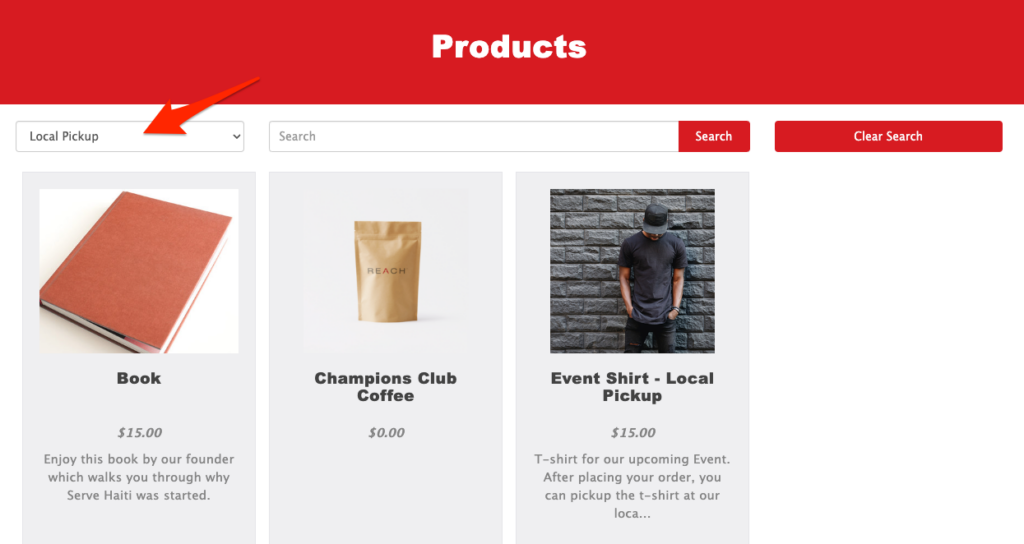
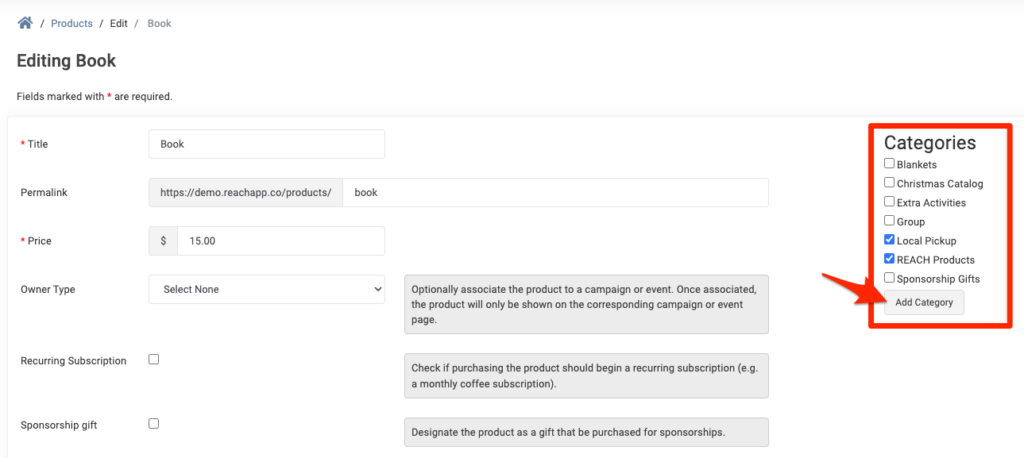
When adding or editing your Product, you’ll see the Categories box on the right side of the edit screen. Simply click Add Category and add a new category for Local Pickup, then be sure to click Save Changes.
Note: For the Category drop down menu to be shown on your Products page, you must be using the REACH Theme Quartz 2.3 or Ruby 2.3 or above. Learn how to update your REACH Theme.
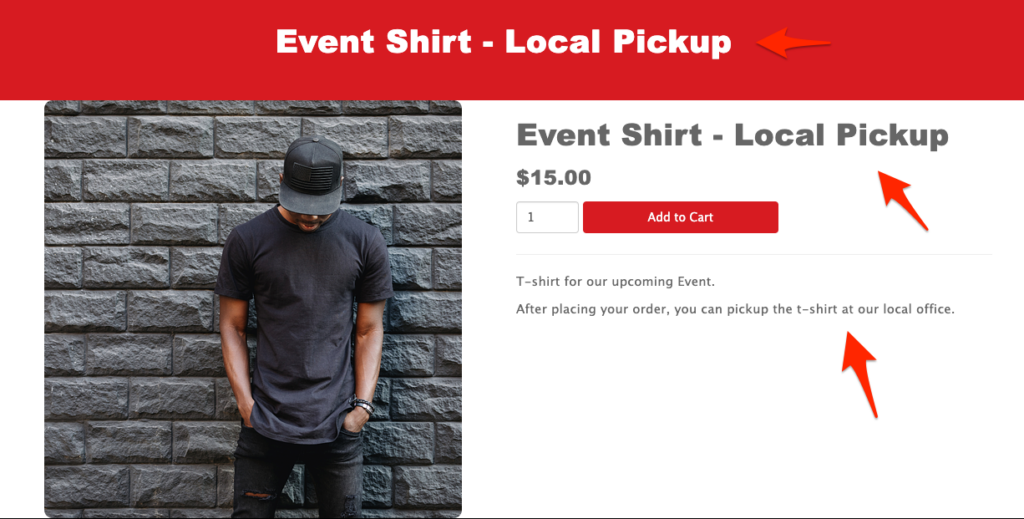
Additionally, consider including Local Pickup information in the product title and/or description for easy reference. This can be done with adding or editing the Product. Here’s an example:
Adding a Shipping Method to Products
Shipping is automatically applied for a product purchase based on your shipping settings.

When an admin or supporter adds the product to the Cart, shipping is indicated in the Cart.

Once a purchase has been completed, the Shipping information is shown on the supporter’s Confirmation Receipt screen:

And in the Donation Details page inthe admin console:

If Shipping is required, an Order for Shipment email will be sent to any Admins that have their Notifications set to Ship Order. This can be viewed and modified per Admin by going to Settings > Admin Users > Edit > Notifications tab > clicking on Ship Order option > Save Changes.