Two-factor authentication, or 2FA, is an extra layer of protection used to ensure the security of REACH admin accounts beyond just the username and password.
Why Two-Factor Authentication?
Two-factor authentication strengthens REACH admin access security by requiring two methods to verify your identity.
For REACH, these factors include something you know – your username and password -plus something you have – like a smartphone app and text messaging – to approve authentication requests.
By integrating 2FA with REACH, if attackers are able to access your account with your username and password but do not possess your physical device needed to complete the second authentication factor, they will not be able to hack into your account.
For REACH, based on your initial setup, this second authentication factor will either be:
- A one-time QR code generated from an Authenticator App; or,
- A one-time sms code send to your mobile device
Is Two-Factor Authentication Required?
2FA is strongly recommended for all REACH admin accounts.
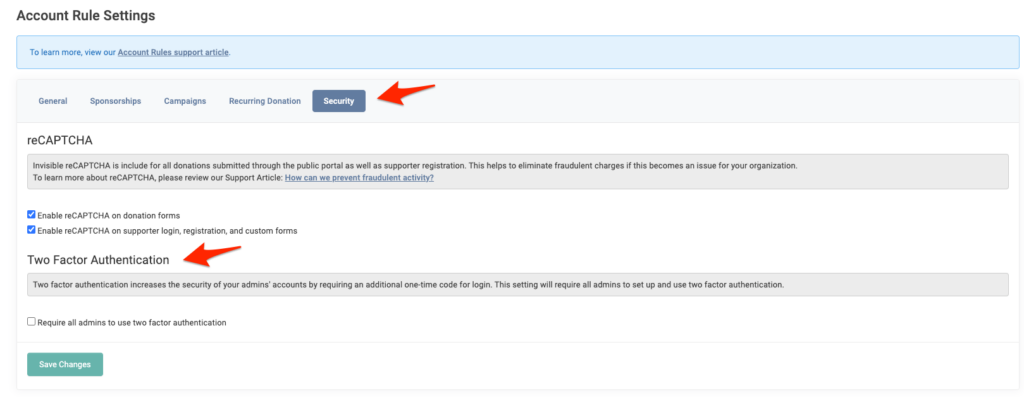
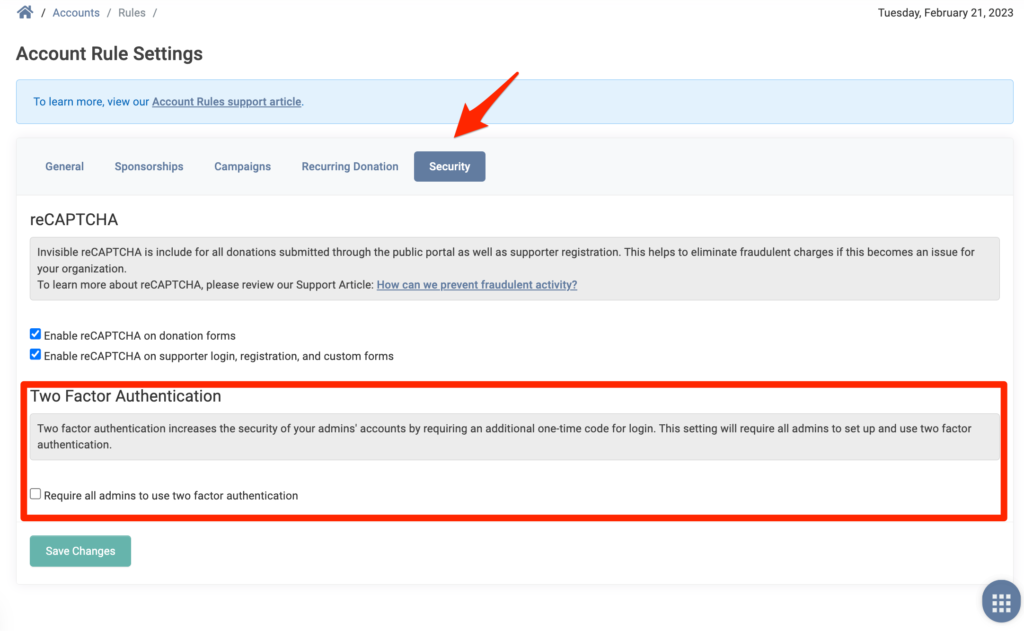
However, you as an organization, can choose to Require all admins within your organization to use two factor authentication by checking the box under Settings > General Settings > Security.
How to Setup 2FA
First, sign into your individual Admin Account.
Note: If multiple people sign using one Admin Account and you have 2FA enabled, each person would need access to the same 2FA authentication factor method.

At the top right, click on your Profile, and then on Change Password/Info.
Click on the blue Set Up Two-Factor Authentication button

You will be given two options:
- Set up using the Authenticator App (Most Secure Option)
- Set up using SMS
Select your option and click on Continue.
Setting up the Authenticator App (Most Secure Option)
Important Note: For this option, you must install an Authenticator App on your phone. We recommend Authy (Download on Google Play or Download in the App Store), Google Authenticator (Download on Google Play or Download in the App Store) or 2FAS (Download on Google Play or Download in the App Store). This process will not work by simply scanning the QR Code using your mobile phone’s camera.
For the Authenticator App, you will be asked to Scan the QR code below with the authenticator app (Authy or Google Authenicator), then click Continue.
Note: Open the App and look for the + button. Click that and Scan a QR code or Enter a setup key.

After successfully setting up Two-Factor Authentication, you will be provided a set of Backup Codes.
We advise you print or copy these backup codes and keep them in a safe place in case you lose access to your phone. They will NOT be displayed again.

Be sure to click on Done to complete the Two-Factor process.
Once complete, you will see the following confirmation on your Settings > Admin Users > Edit Admin page:

From here, you can Re-Generate Backup Codes if needed and Disable Two-Factor Authentication.
Using the Authenticator App
Once 2FA is setup using an Authenticator App, you will be prompted to enter the Two-Factor Authentication Code each time after logging into your Admin account.
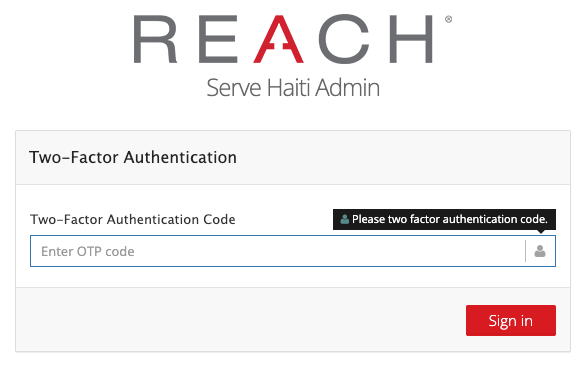
This is a 6-digit code you will access by opening the app on your mobile device.
- Open the Authenticator App and you will see a 6-digit code
- Type this code into the Enter OTP code field
- Click Sign in
Note: The codes will be change every so often. The Authenticator App likely has a countdown in the form of a time-lapse circle. Once the code is getting close to changing, the code will change colors indicating the numbers are about to change. The numbers will need to be current when entered into the Enter OTP code field.
Here is an example using the Google Authenticator app.
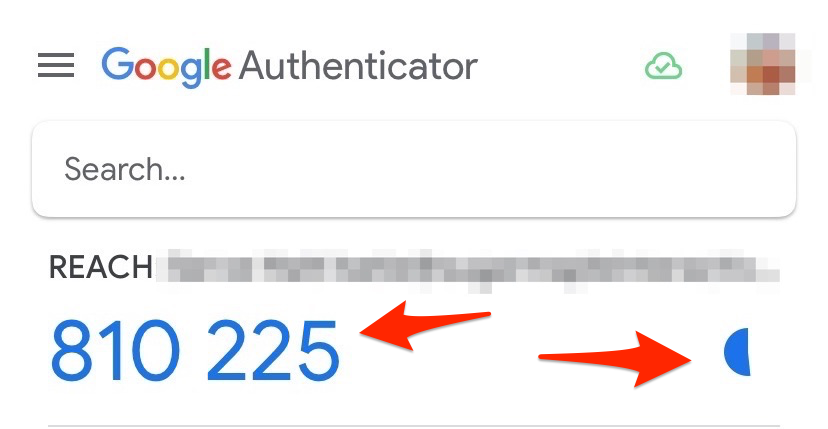
Note the 6-digit code that changes and the time-lapse circle that indicates a new code is being generated.
SMS Option
For the text messaging option, you are required to have a mobile number stored on your admin account.
Click the Send Verification Code button to send a text to verify your admin phone number.

A one-time code will be sent to your mobile device.
Enter that code onto the next screen in the space provided.

Click Verify.
Once Verified, you will be provided with a set of Two-Factor Backup Codes.
We advise you print or copy these backup codes and keep them in a safe place in case you lose access to your phone. They will NOT be displayed again.

Be sure to click on Done to complete the Two-Factor process.
Once complete, you will see the following confirmation on your Settings > Admin Users > Edit Admin page:

Using the SMS Option
Once 2FA is setup using SMS, you will be prompted to enter the Two-Factor Authentication Code each time after logging into your Admin account.
This is a 6-digit code you will receive via text message. This code will differ each time you sign in.
- Open the SMS text message and you will see a 6-digit code
- Type this code into the Enter OTP code field
- Click Sign in
Disabling Two-Factor
To Disable Two-Factor Authentication for your admin user account, click on the Disable Two-Factor Authentication button from the Change Password/Info screen. You cannot disable 2FA for another admin user.
We do not recommend this option.

As an organization, you can also choose to not require 2FA for your admins.
To do so, go to Settings > General Settings > Security tab.
Under Two Factor Authentication, uncheck the box for Require all admins to use two factor authentication and click Save Changes.