
REACH includes an integration with Zapier so organizations can easily and automatically share data between their favorite web apps. This integration requires an account with Zapier. Zapier offers a free trial and a Starter plan that costs around $20/month.
As a nonprofit, you may use multiple web apps for donor management, donation record keeping, and communication. Our Zapier integration helps ensure that new data added to one app is also added to another automatically. There is no coding required—just connect the apps you use with REACH through a simple authorization process and create your automated workflows, called Zaps.
Note: If you have installed Zapier prior to August 2025, you can access the latest version 1.2.0 of the REACH Zapier integration by clicking the link in Settings > Site Integrations. This version allows creation of offline donations from Zapier.
Benefits of Integrating with Zapier
- Accomplish digital transformation goals by sharing data to and from other web apps you use
- Save time and reduce manual entry by automating workflows
- Give field admins with limited REACH access the ability to input or receive information without logging in (e.g., a Google Form connected through Zapier can send data directly to REACH)
Example Zapier Integrations
- REACH + Constant Contact
- REACH + Eventbrite
- REACH + Google Forms
- REACH + Google Sheets
- REACH + Mailchimp
- REACH + Microsoft Excel
- REACH + Microsoft Teams
- REACH + Salesforce
- REACH + Slack
- REACH + QuickBooks Online
Note: For all apps, you must have the endpoint in your secondary app prepared before creating your Zap. For example, if connecting REACH to Microsoft Excel, set up the spreadsheet before creating the Zap so you can select the correct row or column for the data.
Please keep in mind that Zapier is a third-party service. If you have questions regarding setting up Zaps or Zapier support, please check Zapier’s Help Center.
About Zaps
In Zapier, Zaps are workflows that connect a trigger in one app to an action in another app. Activity in one app triggers the action in another without manual data entry.
Once created, Zapier checks for new data every few minutes. Updated records in REACH are synced every 30 minutes. Created records are pushed immediately.
Starting Zapier and Adding REACH
- From your Admin Console, go to Settings > Site Integrations, scroll to the Zapier section, and click Connect to Zapier

- Click Accept Invite & Build a Zap to use REACH as a trigger in Zapier

- Before adding your first Zap, connect your REACH account to Zapier and create a Zapier account if you do not already have one.
- Sign into your REACH account and authorize the connection
Note: Zapier Starter plans costs around $20/month. There is not an additional fee within REACH to use Zapier.
Building Zaps
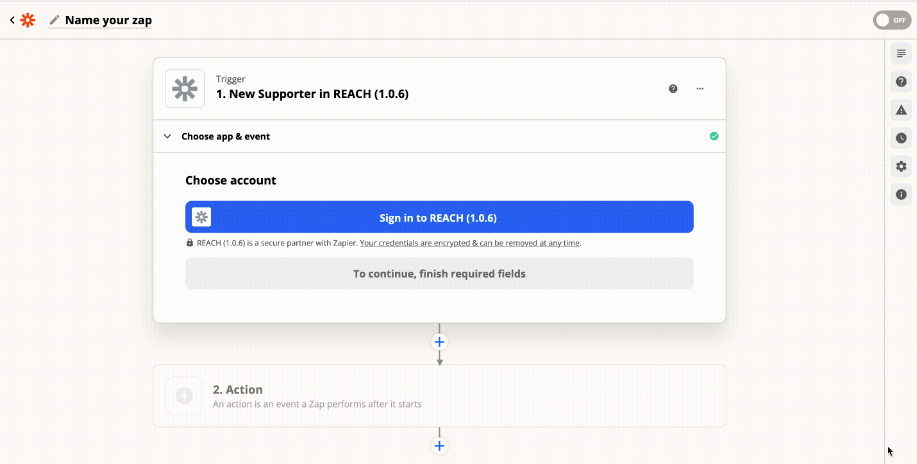
Once you have your Zapier account set up and the REACH connection authorized:
- Log in to Zapier
- Click Zaps > Create a Zap
- Choose your Trigger app (REACH or another app)
- Set up your Trigger Event (e.g., New Sponsorship or New Donation)
- Select the account associated with your Trigger app
- Test your trigger and review the example record
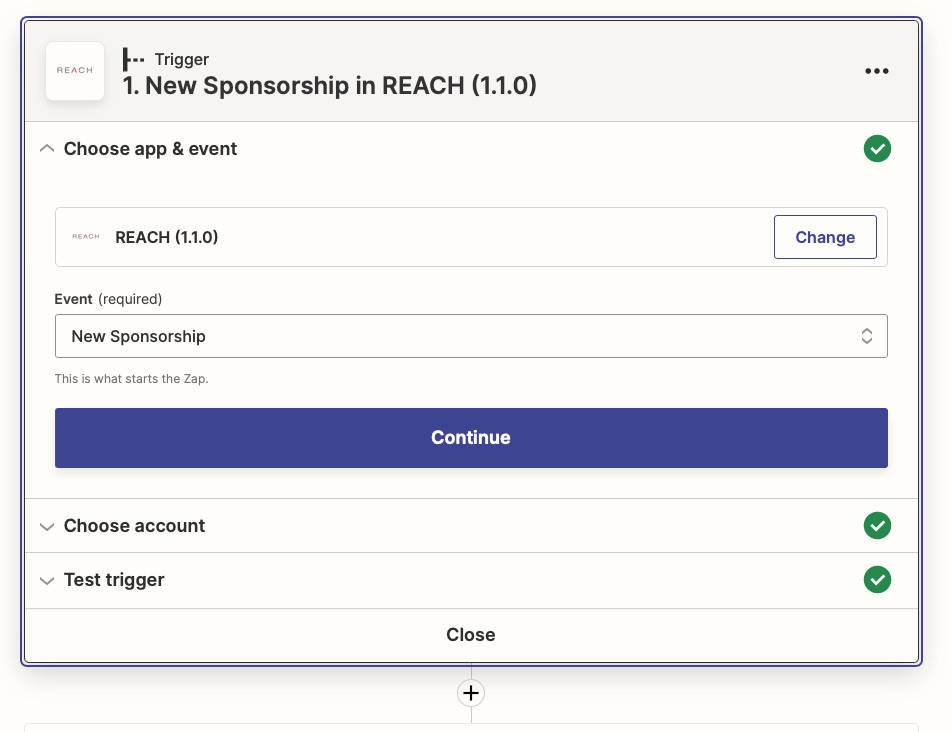
- Choose your Action app (REACH or another app)
- Set up your Action Event (e.g., Create a spreadsheet row or Add a journal entry)
- Select the account associated with your Action app
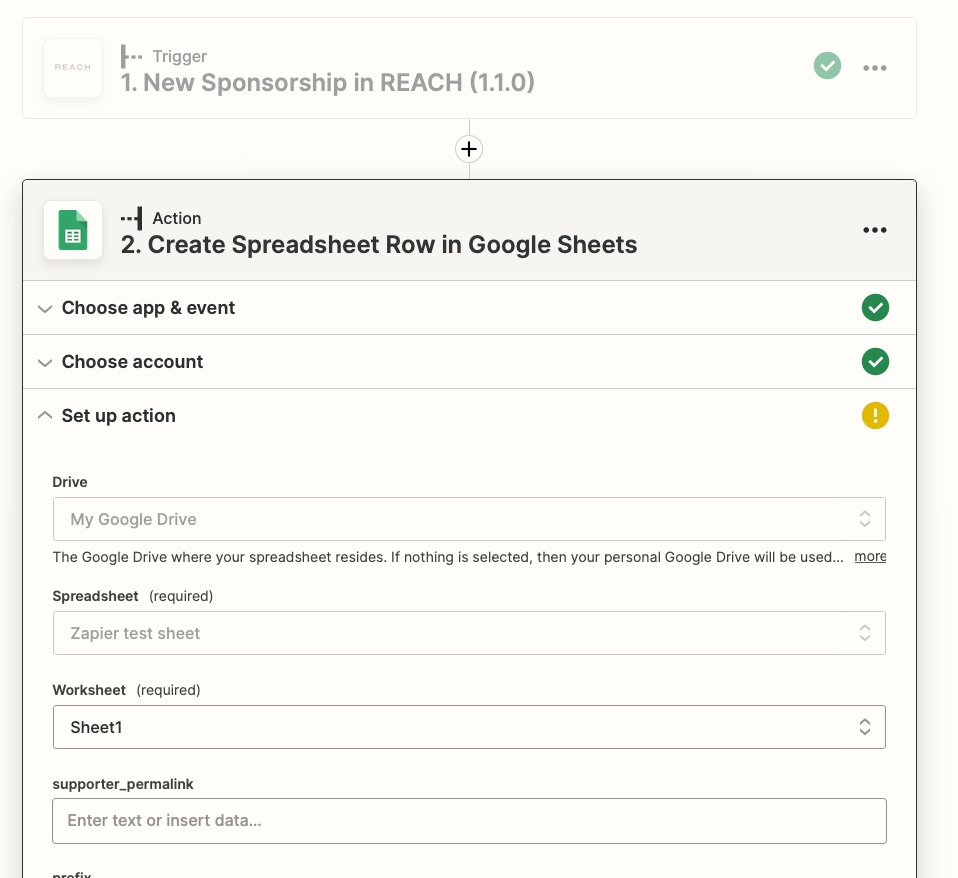
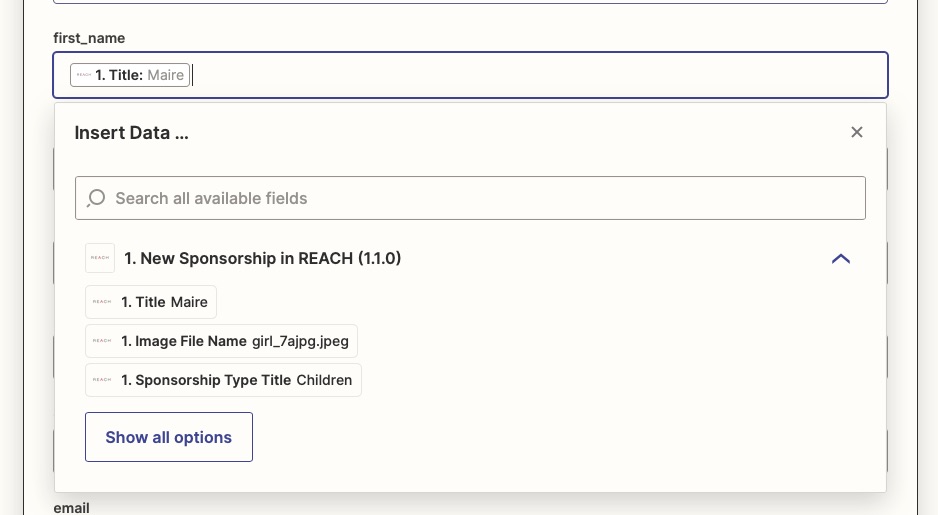
- Map your Action fields; field options will include data from the Trigger test so you can review how it will be entered
- Test and review your Action
- Complete and Publish your Zap
Reviewing Zapier Records in REACH
Any records shared between REACH and Zapier will be tagged Synced from Zapier
To view these records, go to Reports, select your desired report, and next to Donation Tags, Supporter Tags, or Sponsorship Tags choose Synced From Zapier.

These records will then be included in your generated report.
Note: To learn more about Tags, visit our Tags article.
Revoking Access to Zapier
To revoke Zapier access for a specific admin user, go to Settings > Admin Users > Edit Admin Account and check the box to revoke access.
This removes authorization for that admin user.