
Our enhanced Stripe direct integration gives your donors more flexible and secure ways to give – including ACH/ACSS Debits, Apple Pay, and Google Pay – all within your existing REACH donation forms.
This updated integration is available now. If you do not upgrade, your transaction fees will increase by 0.5% beginning May 1, 2026.
We encourage you to transition now to avoid the fee increase.
What’s Changing?
No Additional Costs
Your current Stripe and REACH fees will remain unchanged.
New Payment Features
Your donors will have access to modern, streamlined payment options, including:
- ACH (U.S. Bank Account)
- Apple Pay
- Google Pay
These options appear directly within your existing REACH donation forms.
Preparing to Communicate with Supporters
We recommend proactively communicating with supporters about the transition. Below are key points to include.
Payment Method Verification
As with any transition to a new payment gateway, stored payment methods will go through a verification process to confirm they are still valid.
Some card issuers may display this as a pending transaction (for example, a $1 authorization) on a supporter’s statement.
- No funds are actually charged.
- The pending authorization typically disappears within a few days.
ACH/EFT Setup Requirements
Supporters who wish to use ACH will need to link and authorize their U.S. bank account during setup.
They can complete this securely in one of two ways:
- Instant bank connection
- Manual micro-deposit verification (by selecting “Enter bank details manually”)
Both options are available through your donation form or within the Donor Portal.
Supporters with Unsuccessful Transfers
After your transition, you will receive a list of supporters whose recurring payment methods did not transfer successfully.
In most cases, this is due to:
- An expired card
- An invalid payment method
You can follow up directly with those supporters to update their payment information.
How to Transition to the New Stripe Integration
Follow the steps below to begin the transition process.
Step 1: Enter Your Stripe Credentials in REACH
Log in to your REACH Admin Console.
Navigate to Settings > Donation Setup > Payment Gateway.
Click on the green Enable Stripe setup button

Enter the following:
- Stripe Account ID
Found in Stripe under Settings → Business Information - Stripe Publishable Key
- Stripe Secret Key
Found in Stripe under Developers → API Keys
(Be sure to use your live keys, not test keys.)
Click Save Changes.
Step 2: Email REACH Support
Once your credentials are saved, email us to be added to the transition schedule.
We will:
- Add you to the transition list
- Email you with your scheduled transition date
If you haven’t already, we recommend notifying your supporters before your scheduled transition date.
Step 3: Post-Transition Confirmation
After your account has been transitioned, we will:
- Send you confirmation
- Provide a file listing any recurring donations that could not be transferred
These typically fail due to expired or invalid payment methods. You will simply need to contact those supporters to update their information.
Final Setup Checklist
After your transition is complete, finish the steps below to ensure everything functions properly.
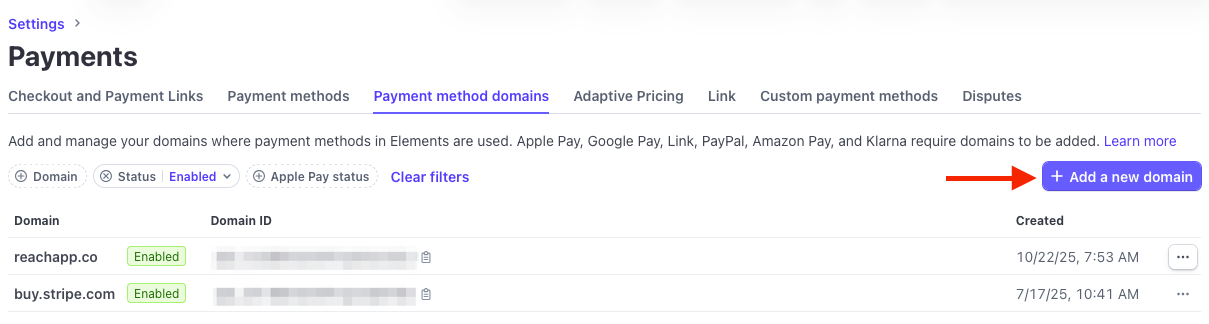
Add Your REACH Domain to Stripe
To ensure the correct domain is connected, please follow these instructions to connect your REACH domain with Stripe:
- In REACH, go to Settings → Domain Names and locate your primary domain
(Example: organization.reachapp.co — omit http:// and www.) - In Stripe, go to Settings → Payments → Payment Method Domains
- Click + Add a new domain
- Enter your REACH domain and save
Enable Apple Pay and Google Pay
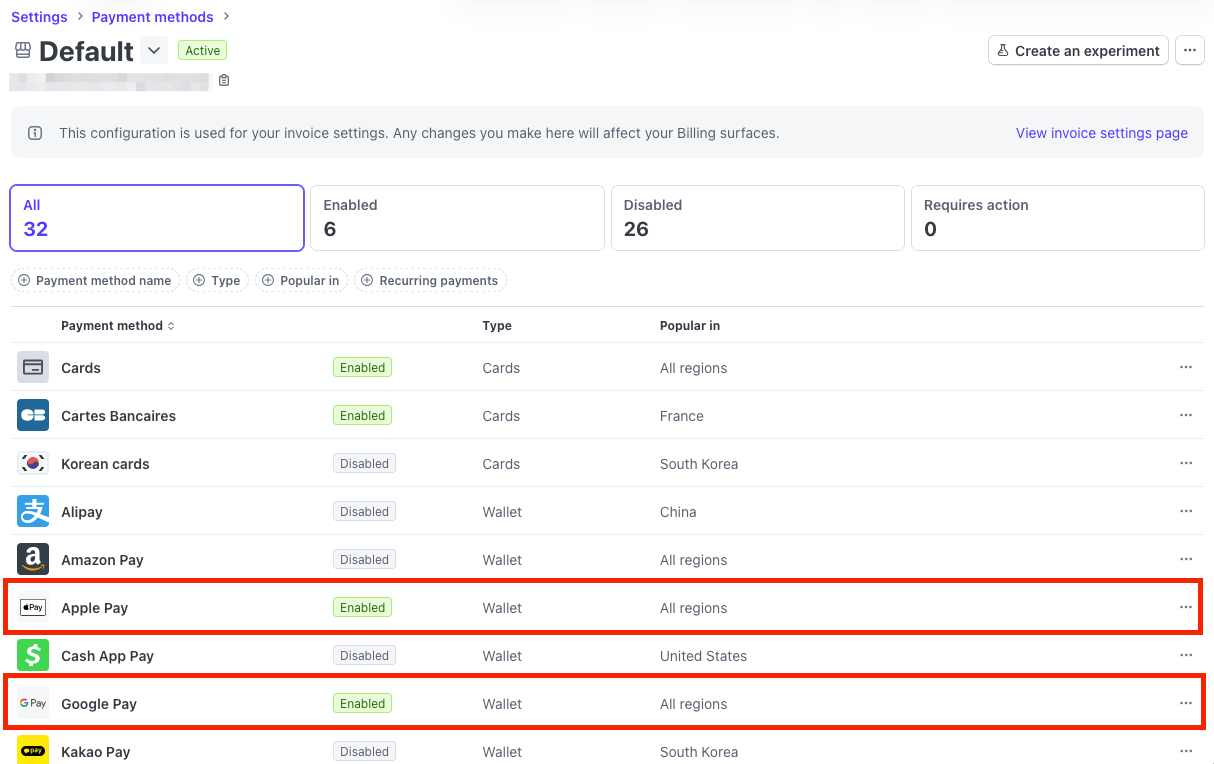
- In Stripe, go to Settings → Payments → Payment Methods
- Ensure both Apple Pay and Google Pay are enabled
Once enabled, these options will automatically appear at checkout based on the donor’s device and browser.
Run a Test Donation
After setup is complete:
- Submit a test donation to confirm the integration is working properly
- You may refund the test donation afterward if desired
Using ACH Payments
Supporters can connect their U.S. bank account either through the public donation form or within their Donor Portal.
Note: Both supporters and admins can initiate this process. However, bank account verification is required to confirm ownership, so admins must obtain the necessary information directly from the supporter.
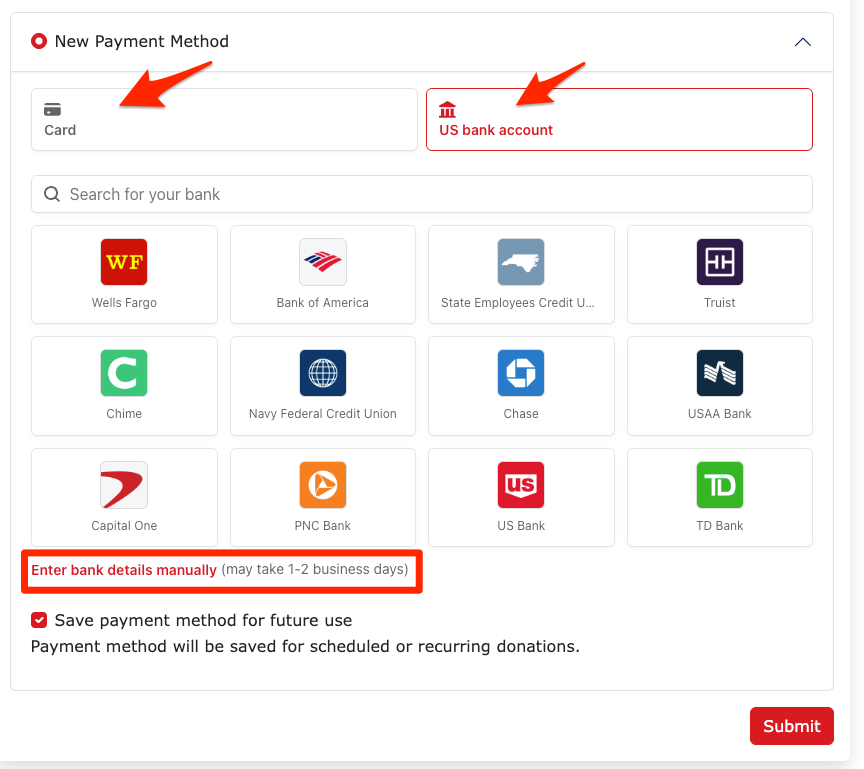
Once verified, donors can:
- Save their bank account for future donations
- Set it as their primary payment method
- Use it for recurring donations
Option 1: Instant Bank Verification
This method verifies the account instantly using the supporter’s online banking credentials.
Steps:
- Select U.S. Bank Account during checkout
- Choose their bank from the list
- Agree to the terms and conditions
- Log in to their online banking
- Select the account to link
- (Optional) Save the payment method for future use
Supporters will receive an ACH Confirmation Email including:
- Agreement Date
- Account Holder Name
- Financial Institution
- Routing Number
- Last 4 digits of the Account Number
Option 2: Manual Verification (Micro-Deposits)
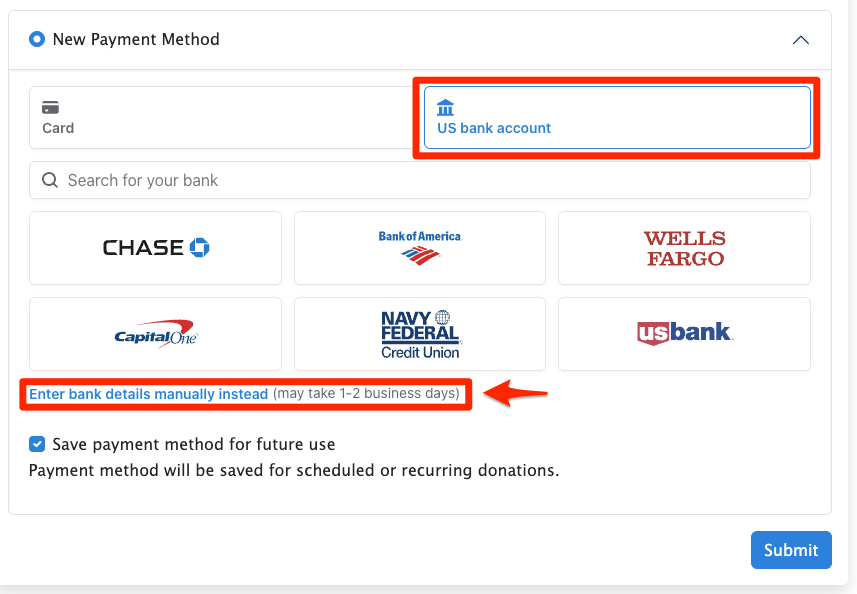
This method does not require bank login but takes longer to complete.
Steps:
- Click on US bank account and then Enter bank details manually instead
- Enter routing and account numbers
- Wait for 1–2 small deposits to appear in their bank account (could take 1-2 business days)
- Follow instructions in the confirmation email or use the verification link to enter the 6-digit code from the deposit statement description
- Note: Verification must be completed within 10 days, after which the verification code expires and the donation will be marked Incomplete. The supporter can retry by adding the payment method again, or start over with a new donation.
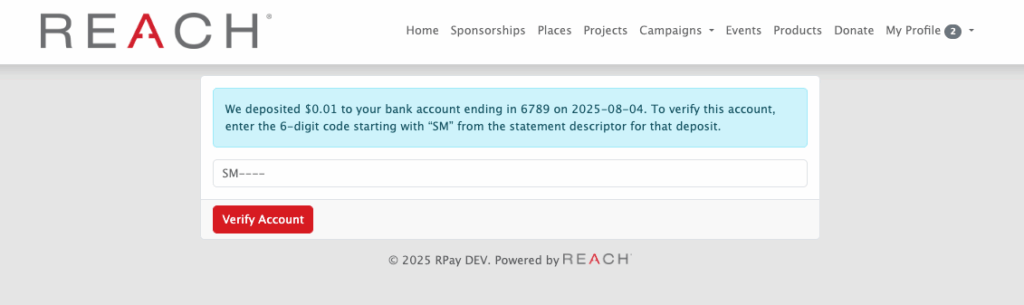
Once verified, the account will be available to use and save.
Communication to Supporters
Here is our recommended message to send to your supporters who want to donate via ACH that includes instructions on how to set up their US bank accounts.
Note: If you have enabled Google Pay and Apple Pay, you can also include its availability.
Dear [Supporter’s Name],
As a supporter, you have two secure options to add a U.S. bank account for donating.
You can complete either option directly from our donation page, or by logging into your Donor Portal and navigating to Payment Information > + Add Payment Method.
Please note: For security reasons, only you can complete this process. Account verification is required to confirm ownership.
Once your bank account is verified, you can save it for future donations, set it as your primary payment method, and use it for recurring donations.
Option 1: Link a U.S. Bank Account (Instant Verification)
This method uses your online banking login to verify your account immediately.
Steps:
• Select “U.S. Bank Account”
• Choose your bank from the list
• Agree to the terms and conditions
• Log in to your online banking
• Select the account you would like to link
• (Optional) Save the payment method for future useAfter setup, you will receive an ACH Confirmation Email that includes:
• Agreement Date
• Account Holder Name
• Financial Institution
• Routing Number
• Last 4 digits of the Account NumberOption 2: Micro-Deposit Verification (Manual Entry)
This method does not require your bank login but takes longer to complete.
Tip: If you cannot locate your bank using Option 1, use this method.
Steps:
• Click on “U.S. Bank Account” and then select “Enter bank details manually”
• Enter your routing and account numbers
• Wait for 1–2 small deposits to appear in your bank account (this may take 1–2 business days)
• Follow the instructions in the confirmation email or use the verification link to enter the 6-digit code found in the deposit statement descriptionOnce verified, your account will be available to use and can be saved for future donations.
If you have any questions or need assistance, please don’t hesitate to reach out. We’re happy to help.