
Portal Branding is where you set the colors and fonts for your portal.
To access it, go to Portal Content > Portal Branding.
Tip: Watch our Setting Up your REACH Portal: Portal Branding short video for a quick walkthrough.
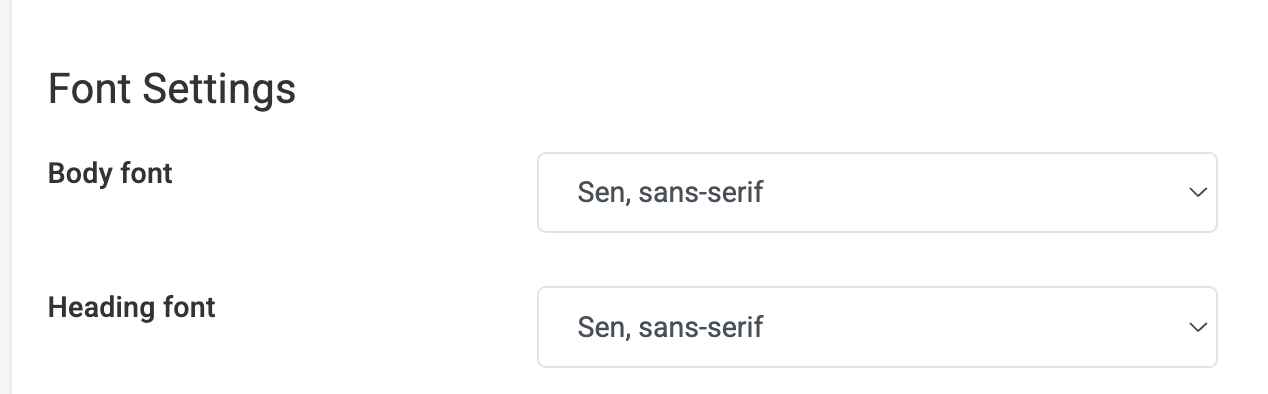
Font Settings
Use the dropdown menus to choose your Body font and Heading font.
Using a custom font
If you’d like to use a custom font, go to Portal Content > Custom Fonts.
Custom fonts can be used in Portal Branding, Themes, and Custom CSS.
To add a custom font:
- Click + New Custom Font
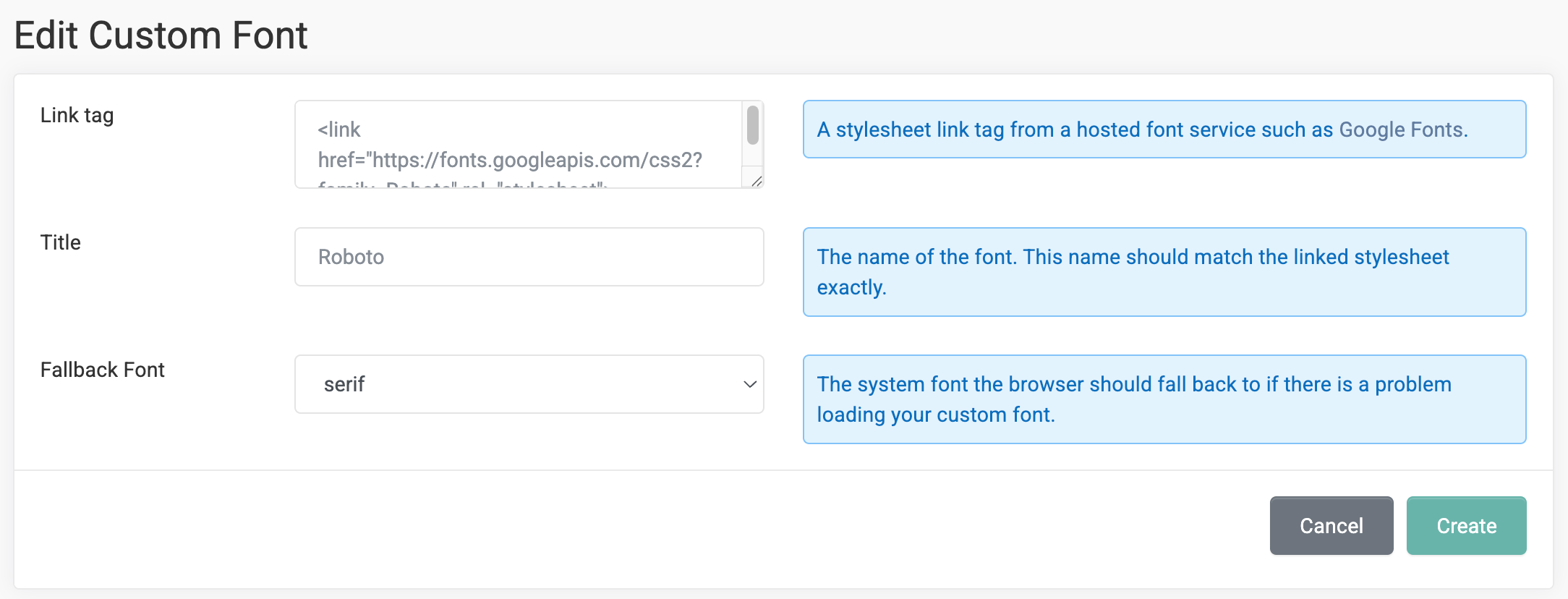
- Fill out the following fields:
- Link Tag — a stylesheet link tag from a hosted font service (such as Google Fonts)
- Title — the name of the font (this must match the linked stylesheet exactly)
- Fallback Font — the system font the browser will use if your custom font doesn’t load
- Click Create
Color Settings
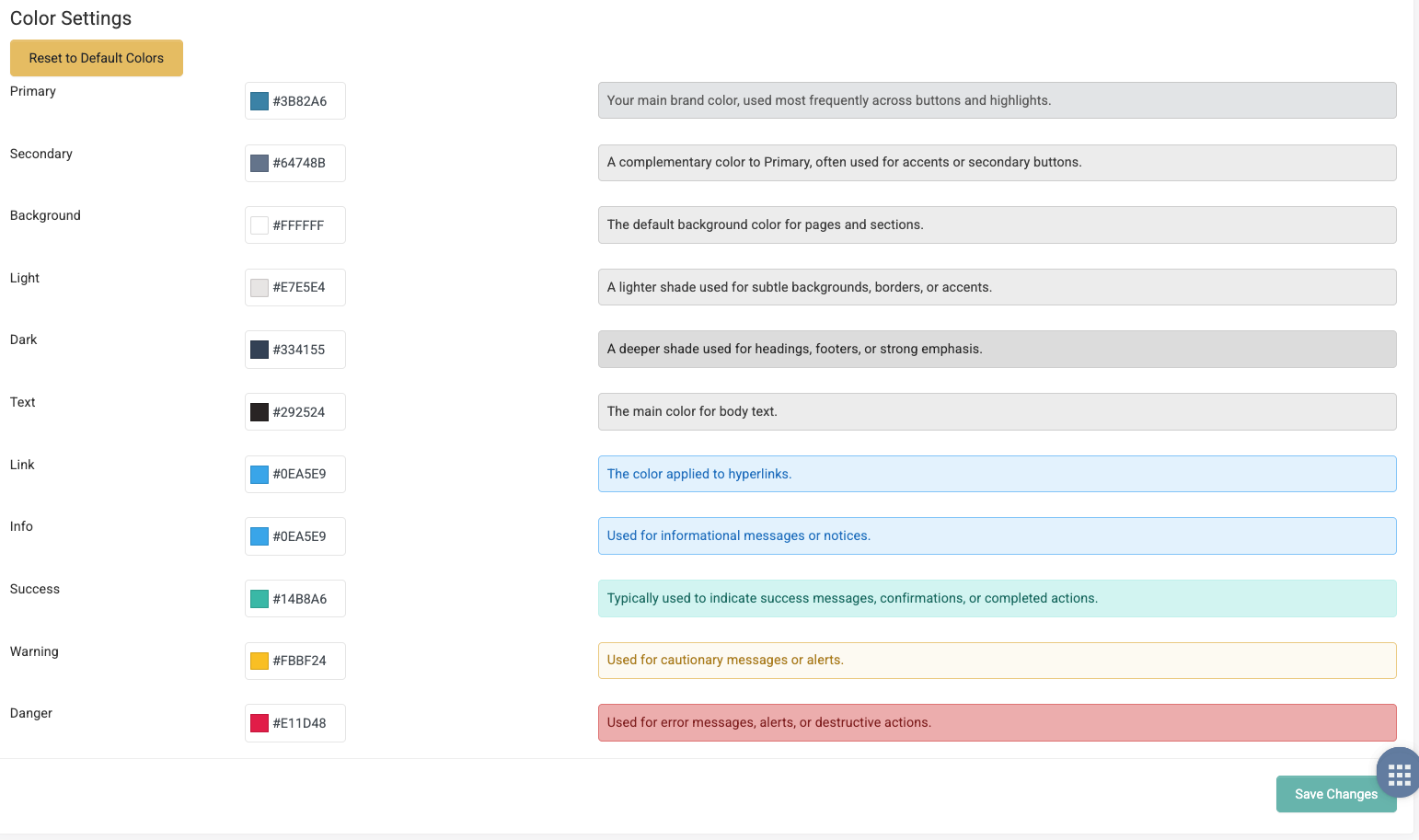
Color Settings control the colors used throughout your portal. Each color includes a description showing where it’s used.
To update your colors:
- Next to each color name, click the box to choose a color from the color picker, or enter a hex code
- To revert to the original palette, click Reset to Default Colors
- Click Save Changes
As shown in the Setting Up your REACH Portal: Portal Branding short video, your Portal Branding selections are referenced throughout templates, making it easy to choose and preview your colors as you build.