
Admins can log Tasks, Notes, and Files throughout the system and directly in a supporter’s record for internal purposes.
Note: This is only available for clients on the Essentials, Pro and Pro Plus plan levels.
Tasks are usually added to a supporter’s record to assign actions to yourself or other admins, helping ensure that the necessary task for the supporter is completed.
Notes let you record details about supporters or donations that don’t require any follow-up.
To add Notes to records, an admin must have the Notes Admin Permission enabled under Settings > Admin Users. Learn more about Admin Permissions.
Files allows you to attach files to the supporter’s record.
For a quick view, the first few entries for Tasks and Notes are listed on the supporter’s primary Details page.

REACH Tip:
You can rearrange the sections on the supporter’s Details page by dragging and dropping them to your preferred arrangement.
A complete list of the supporter’s Tasks, Notes, and Files is available on the Tasks / Notes / Files tab, where you can create, view, and update entries.
Tasks are displayed first, followed by Notes, and then Files.

Tasks
Tasks can be added from the supporter record or other areas within REACH, such as Campaigns, Projects, and Places.
Steps to Add and Customize a Task

To add a task, click Add a task….
Assign the Task
- Select the administrator to assign the task to.
- Check the box to notify the administrator of the task assignment via email.
Provide Task Details
- Enter a Description of the task.
- Add a Due Date for the task.
- Add a Recurring Period of Daily, Weekly, Monthly, Quarterly or Yearly (optional)
- Note: Recurring Tasks will have one parent Task and then subsequent Tasks for each recurring period. You can edit the parent Task by clicking the recurring period of the Task.
- Once completed, enter the Completed Date.
- If the supporter was contacted, include a Contact Date.
Customize Task Categories
- You can create custom Purposes, Codes, and Activities to tailor tasks to your organization’s needs. Examples include:
- Purpose: Donation, Sponsorship, Campaign
- Code: Year, month, accounting reference, or other numerical identifiers
- Activity: Call, Email, In-Person Meeting
To add custom categories:
- Click the + Category button.
- Choose Purpose, Code, or Activity from the dropdown menu
- Enter a Category Title.
- Click Add Category.
- Repeat these steps for each custom category you want to create. Once done, you can select from your custom options when adding tasks.
- Click Save to finalize the task.
All tasks for the supporter will be displayed in their record, as shown below.
The total number of tasks assigned to the logged-in Admin will be displayed on their Admin Console homepage.
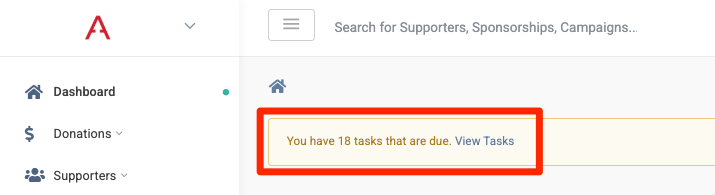
Tasks are organized with the earliest due date listed first.

- The Due Date is displayed next to the calendar icon, while the Added On date is shown on the right-hand side.
- The administrator assigned to the task is listed next to the calendar/due date.
- Custom categories are color-coded for easy identification: Purposes in yellow, Codes in blue, and Activities in green.
- To mark a task as complete, either check the box or click the pencil icon to edit the task and add a Completed Date.
- To delete a task, click the trash icon.
For Recurring Tasks:
- The Recurring Period is shown next to the Due Date.

- Click on the Recurring Period to edit the parent Recurring Task. For example, in the screenshot above, click on Monthly.

- From this screen, you can update the Recurring Period and/or the Task itself.
A complete record of all tasks is also accessible in the Tasks Index via the Alarm icon in the top right corner.

From this index, you can create and view:
- Recurring Tasks
- My Tasks: Tasks assigned specifically to you, the logged-in administrator
- Completed Tasks
- All Tasks: Tasks across all record types and admin users (depending on your permission settings)
Additional features in the Tasks Index include:
- Exporting My Tasks
- Searching for a specific task
- Viewing and sorting tasks by Due Date
- Sorting tasks by Referral
- Clicking on the Description to open the task record
- Using the Actions button to edit or delete a task
Notes
You can add Notes to Donation Details, Supporter profiles, Sponsorship profiles, as well as Project, Place and Campaign records.
Just look for the Notes section within each record to add your note.
To do this, an admin must have the Notes Admin Permission enabled under Settings > Admin Users. You can also adjust access levels to Read-Only (can view but not add notes) or No Access (cannot view or add notes). Learn more about Admin Permissions. Admin Permissions are available on the Essentials, Pro and Pro Plus plan levels.

Click Add a note… to record a note.
- Enter a Title (optional)
- Add the Note content
- Attach a file (10 MB or less)
- Click Save
After adding the note, you can Add Comments, Edit, or Delete the note as needed.

In the supporter’s profile, Notes will also be shown on the supporter’s Details tab. You can rearrange the Notes section and other sections on the Details tab by dragging and dropping them.
REACH Tip: Supporter Notes can be imported and exported under Data Setup > Data Import/Export.
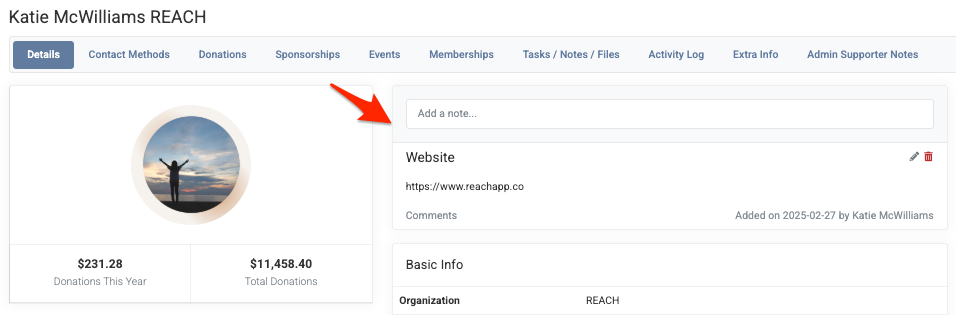
On the Details tab, Notes are trimmed to 100 characters to keep the text manageable, with HTML tags like links and bold removed to prevent layout issues. To see the full Note and access links, go to the Tasks/Notes/Files tab.
Notes can also be added directly on an individual Donation Details page.

As seen in the above screenshot, simply type your you in the Add a note… field. Once recorded, the Note will be saved on the Donation Details page, where it can be edited, deleted or commented on. The Added on Date and by Admin will also be recorded on the Note.
Files
Directly below the Notes section, you’ll find the Files section.

Click + Add More Files to upload your files (10MB or under).
Once uploaded, you can choose how many entries you want to show in the list, search for files and use the Actions button to download or delete files.